
How to Import and Export a Database With phpMyAdmin
phpMyAdmin is the database tool inside cPanel. You will use it to back up a database before big changes, to move a website from another host, or to restore data. This guide covers exporting and importing step by step — including what to do when files are too large.
Before you start
- Know which database your site uses. For WordPress, open
wp-config.phpin File Manager and look forDB_NAME. For other software, check its config file (often.envorconfig.php). - Export before every import. Importing can overwrite tables. Always download a copy of the current database first.
Part A: Export (download) a database
Step 1: Open phpMyAdmin
In cPanel, go to Databases → phpMyAdmin. It opens in a new tab — no extra login needed.
Step 2: Select the database
In the left column, click the database name (for example yourbusi_wp). Its tables appear on the right.
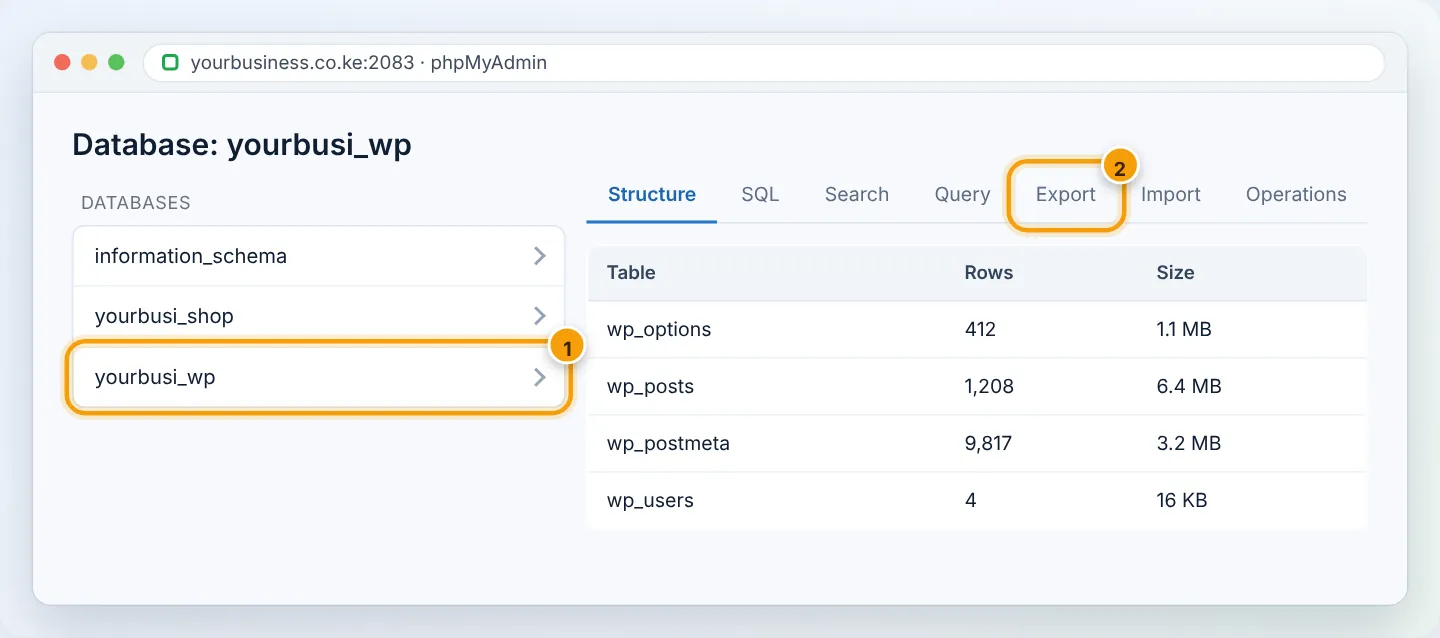
Step 3: Export as SQL
- Click the Export tab.
- Export method: Quick is fine for most sites. Choose Custom if you want compression.
- Format: SQL.
- Click Go. A file like
yourbusi_wp.sqldownloads to your computer.
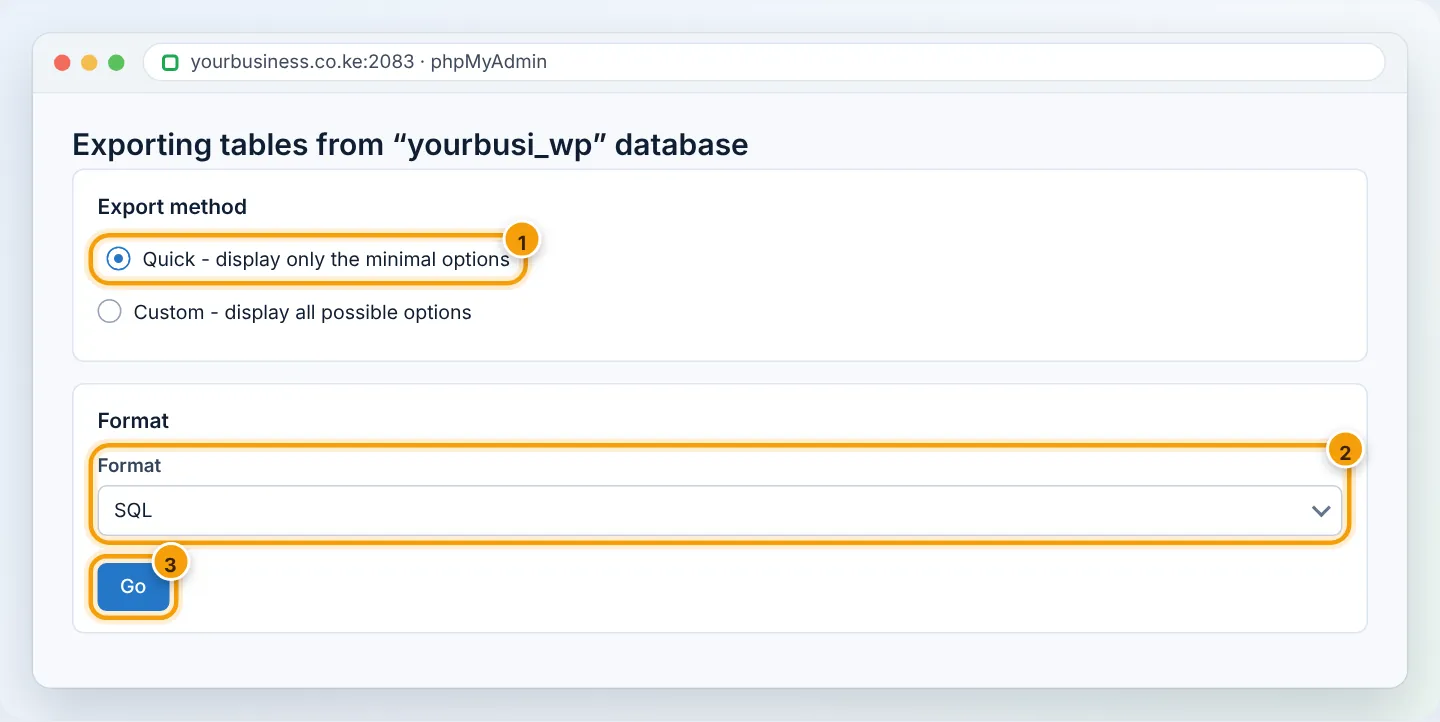
For big databases (over 50 MB), choose Custom → Compression: zipped or gzipped. The download is much smaller and phpMyAdmin can import it directly.
Part B: Import a .sql file
Step 1: Make sure the target database exists
Importing goes into an existing database. If you are moving a site, create an empty database and user first — see Create a MySQL database.
If the target database already has tables with the same names, the import may replace them. Export a backup of the target first (Part A).
Step 2: Select the database and open Import
In phpMyAdmin, click the target database in the left column, then the Import tab.
Step 3: Choose the file and import
- Click Choose File / Browse and pick your
.sql,.sql.gzor.zipfile. - Character set of the file:
utf-8(default). - Leave Partial import and other options at their defaults.
- Format: SQL.
- Click Import (or Go) at the bottom.
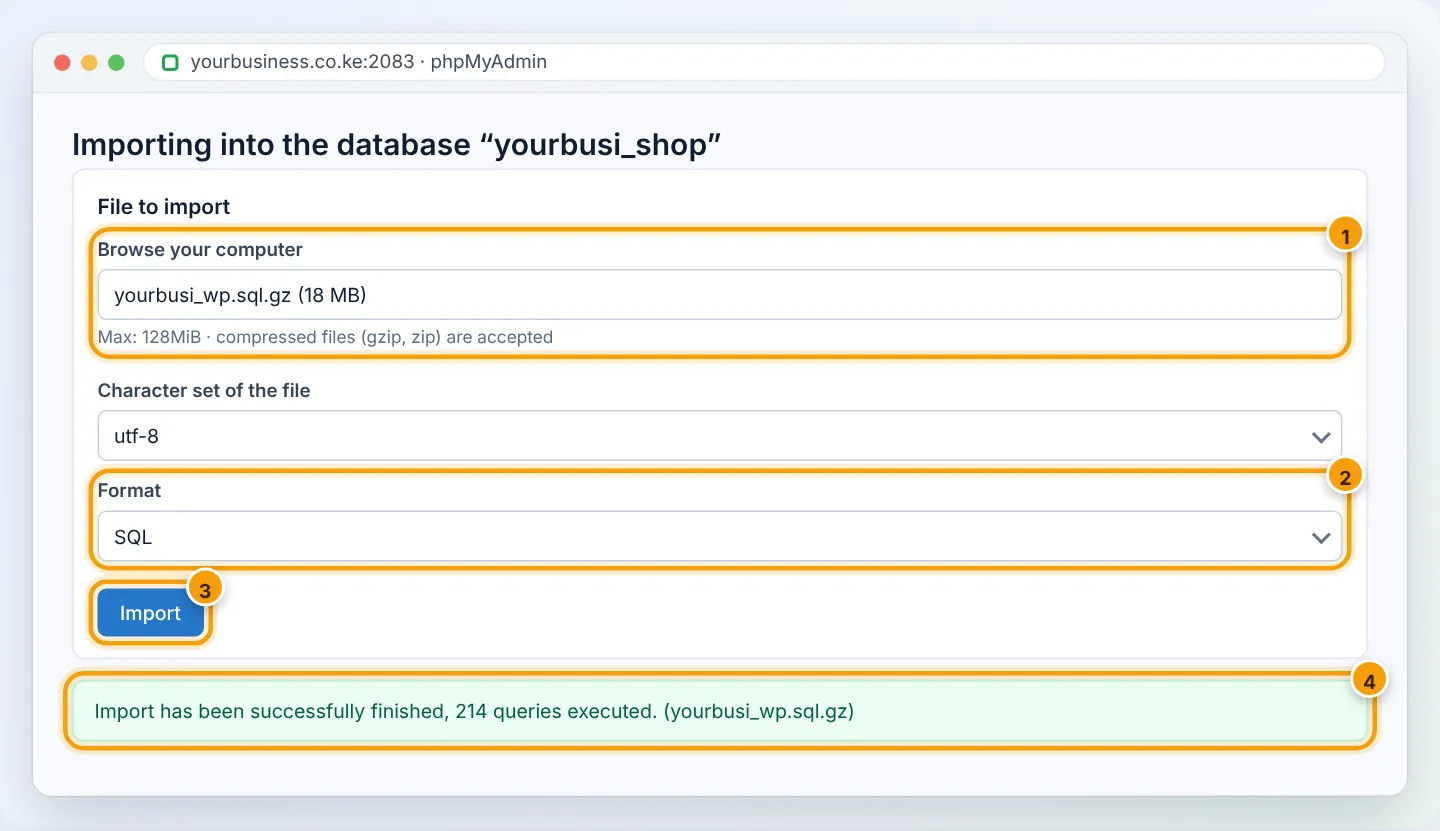
When the green message appears, click the database name again and check the tables are listed.
Large files (over the upload limit)
The maximum import size is shown under the file box. If your file is larger:
- Compress it (
.gzor.zip) — SQL text compresses 5–10×. - Raise the limit: Software → Select PHP Version → Options, increase
upload_max_filesizeandpost_max_size(e.g. 256M) — see Change PHP settings. - Still too big? Upload the file to your home folder with FTP and ask our support team to import it for you — we do this free.
After importing a website's database
- Update the website's configuration with the new database name, user and password (
wp-config.php,.env). - If the domain changed, update URLs inside WordPress — see Move WordPress to a new domain.
Troubleshooting
| Error | Cause | Fix |
|---|---|---|
#1044 Access denied for user … to database 'olddb' |
The file contains CREATE DATABASE / USE olddb lines from the old host |
Open the file in a text editor and delete those lines near the top, or re-export without “Add CREATE DATABASE” |
#1062 Duplicate entry |
Importing into a database that already has data | Import into an empty database, or drop the existing tables first (after backing up) |
#1273 Unknown collation 'utf8mb4_0900_ai_ci' |
Export came from MySQL 8 | Replace utf8mb4_0900_ai_ci with utf8mb4_unicode_ci in the file, then import |
| “You probably tried to upload a file that is too large” | Over the size limit | Compress, raise PHP limits, or ask support |
| Import stops / times out | Very large file on a slow connection | Use compressed file; ask support for a server-side import |
| Strange characters (é, ’) after import | Wrong character set | Re-import with utf-8; make sure the export was utf8mb4 |
Frequently asked questions
Is phpMyAdmin export a full website backup?
No — it only covers the database. You also need your files (public_html). For a complete backup see Backup Wizard.
Can I export just one table? Yes. Click the table, then Export.
Figures are simplified illustrations. Your screen may look slightly different depending on your theme and the version of cPanel or the app you use.
Still need help?
Our Kenyan support team is on WhatsApp — real people, not bots. Mon–Sat, 8am–10pm EAT. Tickets are open 24/7.