
How to Back Up and Restore Your Website in cPanel
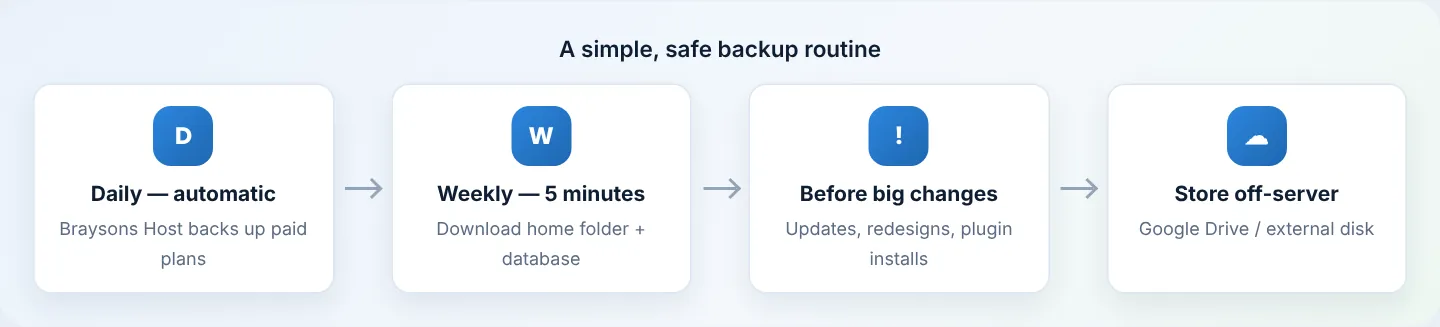
Paid Braysons Host plans are backed up every day and kept for 30 days. You can restore from those yourself, and you should still keep your own copy off the server. This guide shows both — in plain steps.
Your backup options at a glance
| Option | What it covers | Who keeps it | Best for |
|---|---|---|---|
| Daily backups (paid plans) | Whole account, every day, 30 days | Braysons Host, on separate infrastructure | Undoing a mistake from yesterday or last week |
| File and Directory Restoration | Restore single files/folders/databases from daily backups | You click, we store | Quick self-service restores |
| Backup Wizard — partial backups | Home folder, one database, or email settings | You download | Your own off-server copies |
| Full account backup | Everything in one .tar.gz |
You download | Moving hosts; long-term archive |
The Free plan has no daily backups — use the Backup Wizard regularly.
Part A: Download your own backup with Backup Wizard
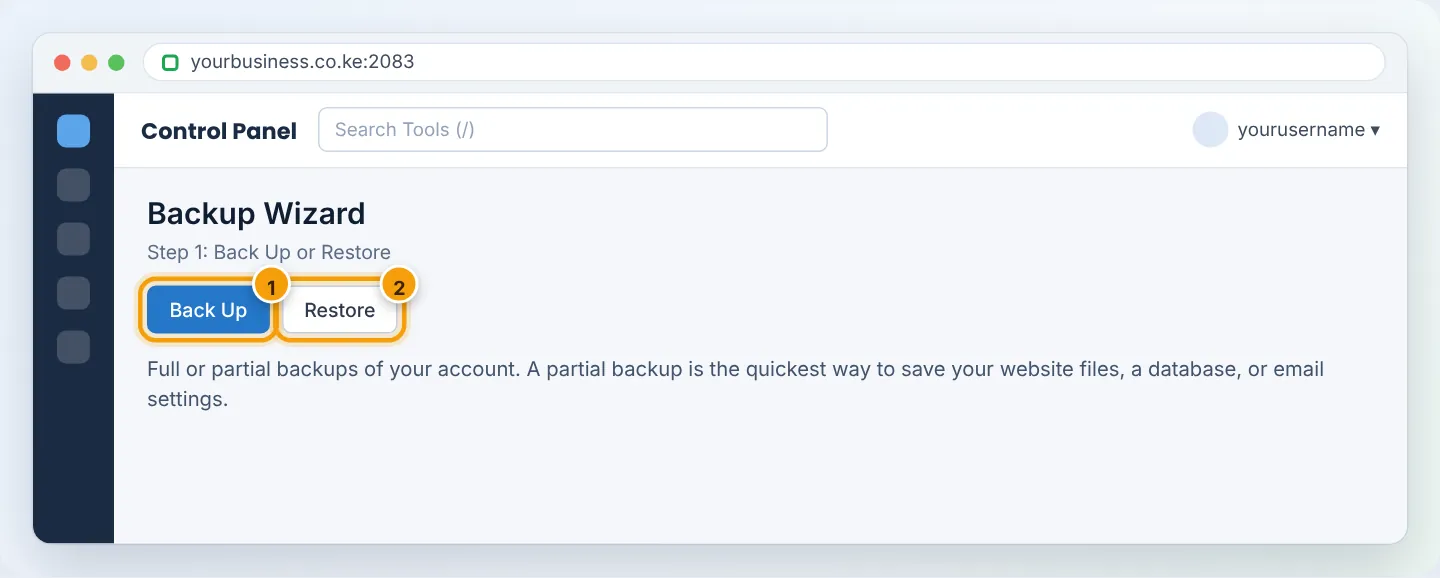
Step 1: Open Backup Wizard
In cPanel, go to Files → Backup Wizard and click Back Up.
Step 2: Choose Partial Backup
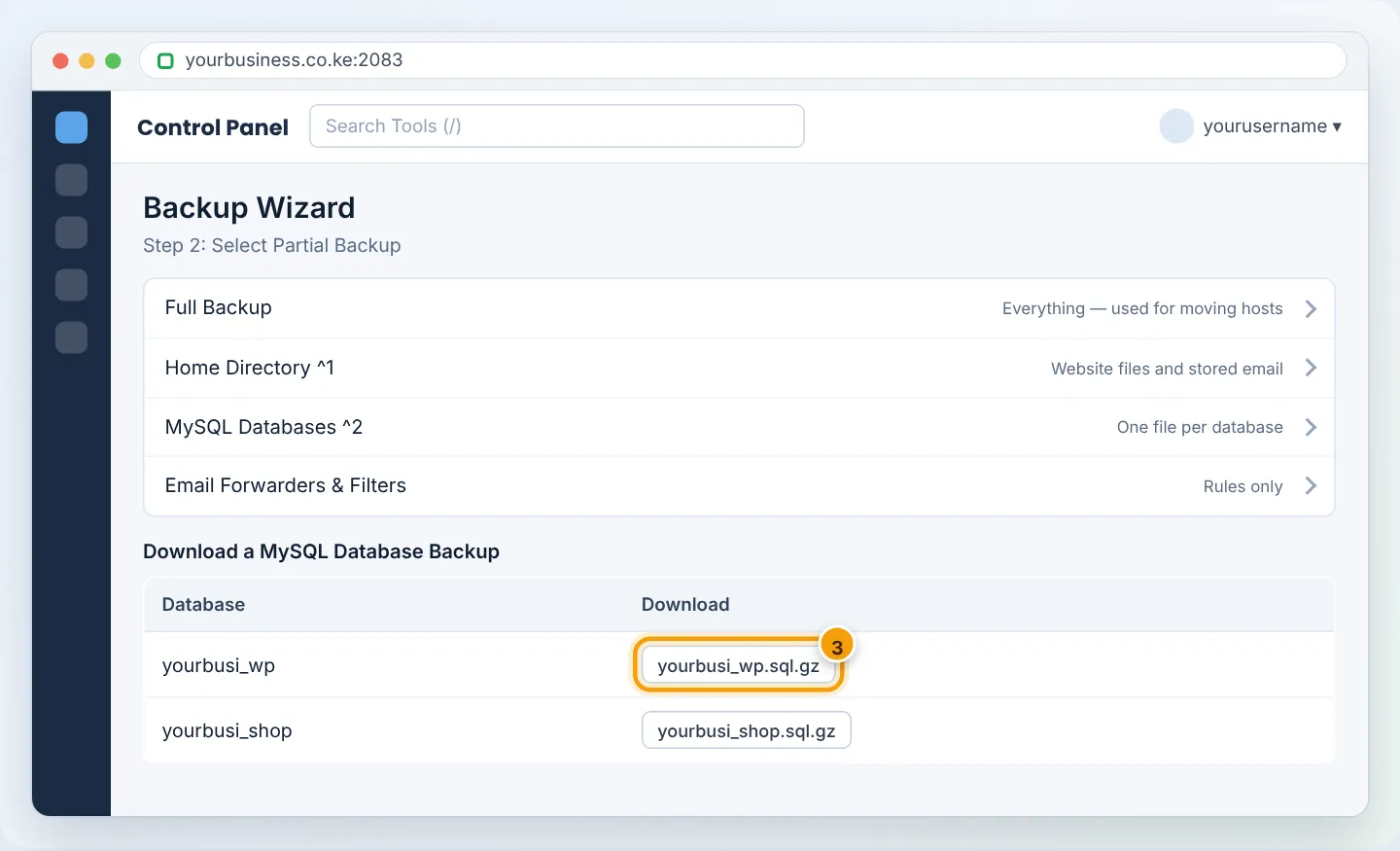
Choose what to download (do each one you need):
- Home Directory — all your files: website (
public_html), other folders, and email messages stored inmail. - MySQL Databases — click each database to download it as
.sql.gz. - Email Forwarders & Filters — the forwarding and filter rules (small files).
Step 3: Store it safely
Save the files to your computer, then copy them to Google Drive, OneDrive or an external disk. A backup kept only on the same server is not a backup.
Name folders by date, e.g. yourbusiness-backup-2026-10-27, and keep the last 4 weekly copies.
Full account backup (optional)
Files → Backup → Download a Full Account Backup → Home Directory → Generate Backup. You will get an email when the .tar.gz is ready (minutes to hours depending on size). Download it from the same page, then delete it from the server — it counts against your disk space. Full backups are mainly for moving hosts; restoring one on shared hosting is done by our team.
Part B: Restore from our daily backups (paid plans)
Step 1: Open File and Directory Restoration
In cPanel, go to Files → File and Directory Restoration.
Step 2: Find the file or folder
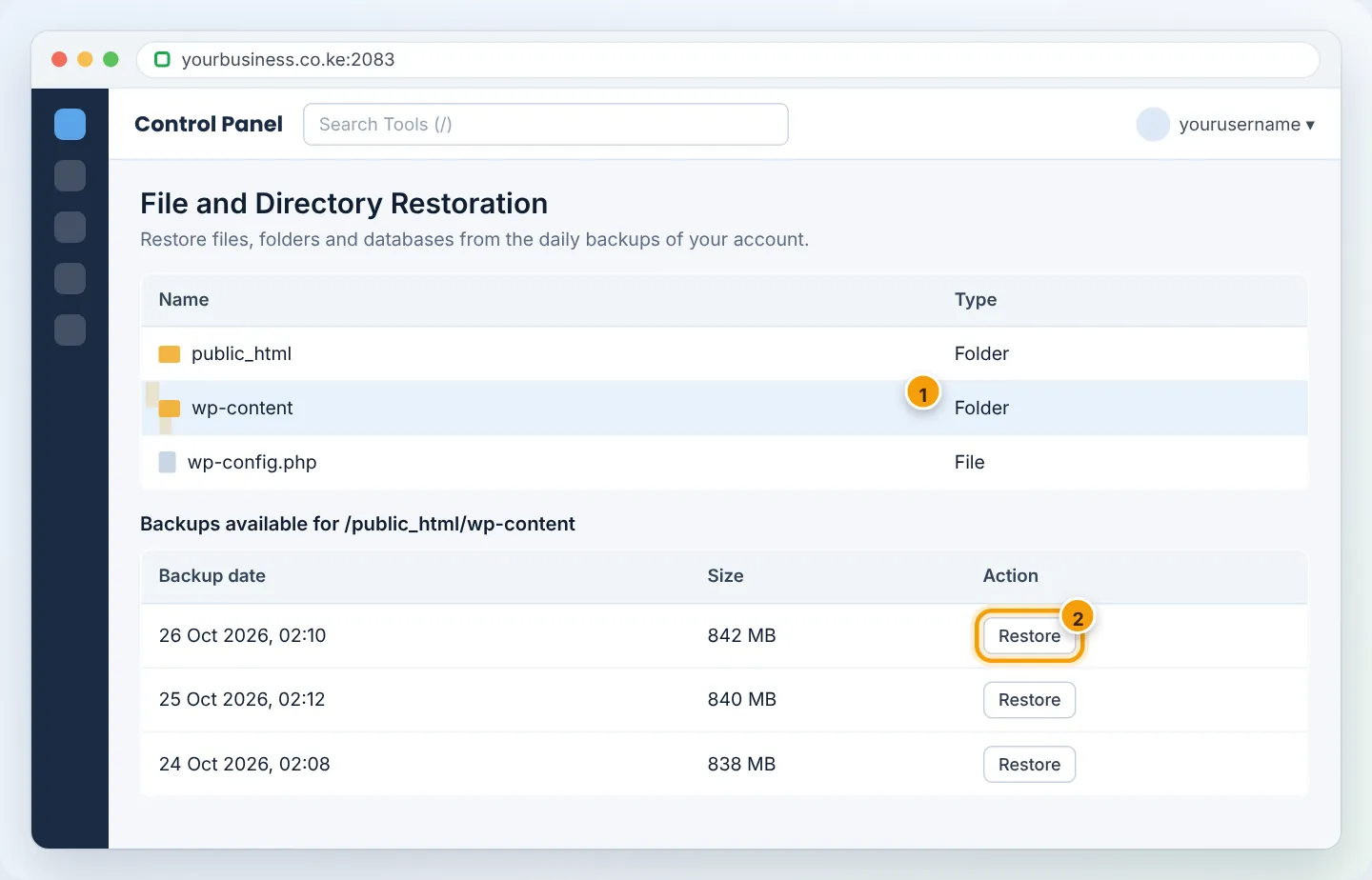
Browse to the item — for example public_html/wp-content/themes/yourtheme or a single page like public_html/contact.php. Click it to see the dates it was backed up.
Step 3: Restore
Choose a date before the problem started and click Restore. Confirm the warning. The item is replaced with the backup version.
Restoring overwrites the current version of that file or folder. If you might need today's version, download it first (File Manager → Download).
Restoring a database
Databases appear in the same tool (or under Databases). Restoring a database replaces all its current data — any orders, posts or form entries since that backup will be lost. Export the current database first with phpMyAdmin.
Need a whole-account restore?
WhatsApp +254 733 338 989 or open a ticket with the date you want. Full restores are typically completed within about 2 hours.
Part C: Restore your own downloaded backup
Files → Backup Wizard → Restore, then choose:
- Home Directory — upload the
backup-…_yourusername.tar.gzhome directory file. - MySQL Databases — upload the
.sql.gzfile for the database. - Email Forwarders & Filters — upload the rules file.
For large files, upload them with FTP and ask support to restore them.
Troubleshooting
| Problem | Cause | Fix |
|---|---|---|
| “Disk quota exceeded” while generating a backup | Not enough free space for the archive | Delete old backups and large files; see Check disk usage |
| Backup email never arrives | Large account still processing, or email went to spam | Check Files → Backup — the file appears when ready |
| Restored WordPress shows old content | You restored files but not the database (or vice versa) | Restore both from the same date |
| No daily backups listed | You are on the Free plan | Upgrade, or rely on your own downloads |
Frequently asked questions
How long are daily backups kept? 30 days, on infrastructure separate from your web server.
Do I still need my own backups? Yes. Our Terms ask customers to keep independent copies. It also protects you if you accidentally delete something and only notice weeks later.
Figures are simplified illustrations. Your screen may look slightly different depending on your theme and the version of cPanel or the app you use.
Still need help?
Our Kenyan support team is on WhatsApp — real people, not bots. Mon–Sat, 8am–10pm EAT. Tickets are open 24/7.