
How to Change Your PHP Version and PHP Settings
PHP is the language WordPress and most websites are written in. Newer versions are faster and more secure, but very old themes and plugins may not support them. Here is how to see your current version, change it, and adjust PHP limits — in a few clicks.
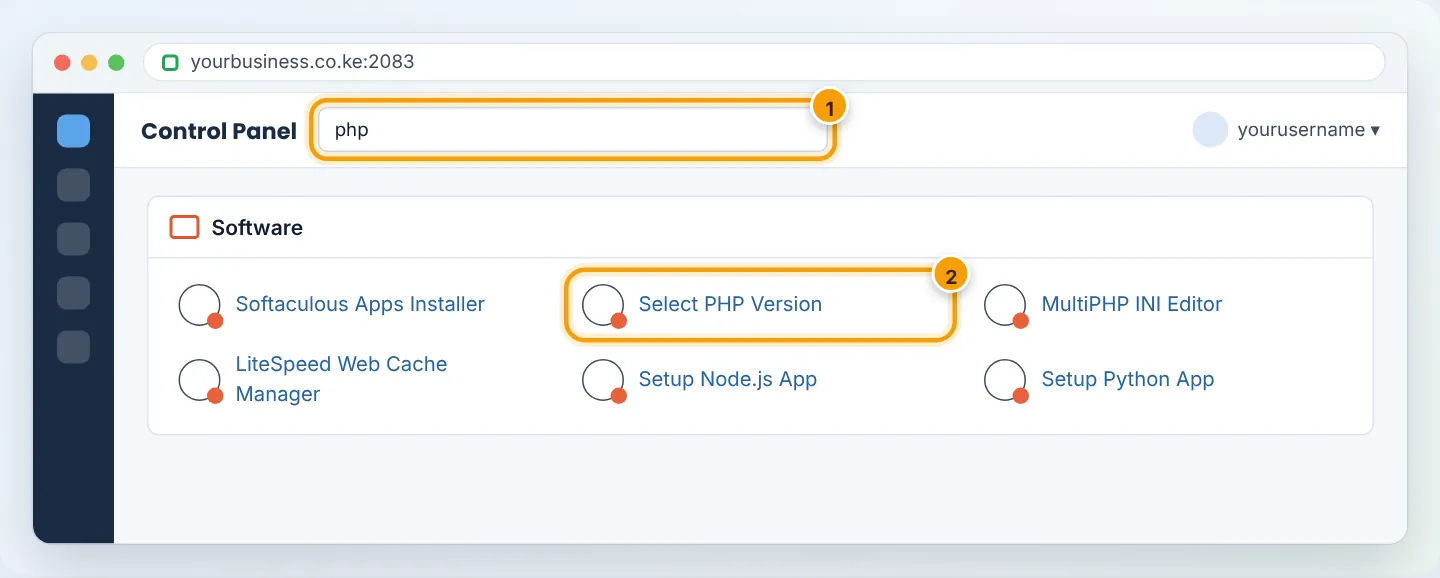
Braysons Host servers run CloudLinux with LiteSpeed, so you get the Select PHP Version tool. It lets you choose your PHP version, switch extensions on or off, and change PHP options — all per account, without asking support.
Which version should I use?
| PHP version | Recommendation |
|---|---|
| 8.3 / 8.2 | Best choice for current WordPress, WooCommerce and Laravel — fastest and supported with security fixes |
| 8.1 | OK for older plugins/themes that are not yet tested on 8.2+ |
| 7.4 or older | End of life — no security fixes. Use only temporarily while you update an old site |
Before switching, take a backup (see Back up and restore with Backup Wizard or your WordPress backup plugin). For WordPress, also update all plugins and themes first — see Update WordPress safely.
Step 1: Check your current version
In cPanel, go to Software → Select PHP Version. The top of the page shows Current PHP version. In WordPress you can also see it at Tools → Site Health → Info → Server.
Step 2: Choose the new version
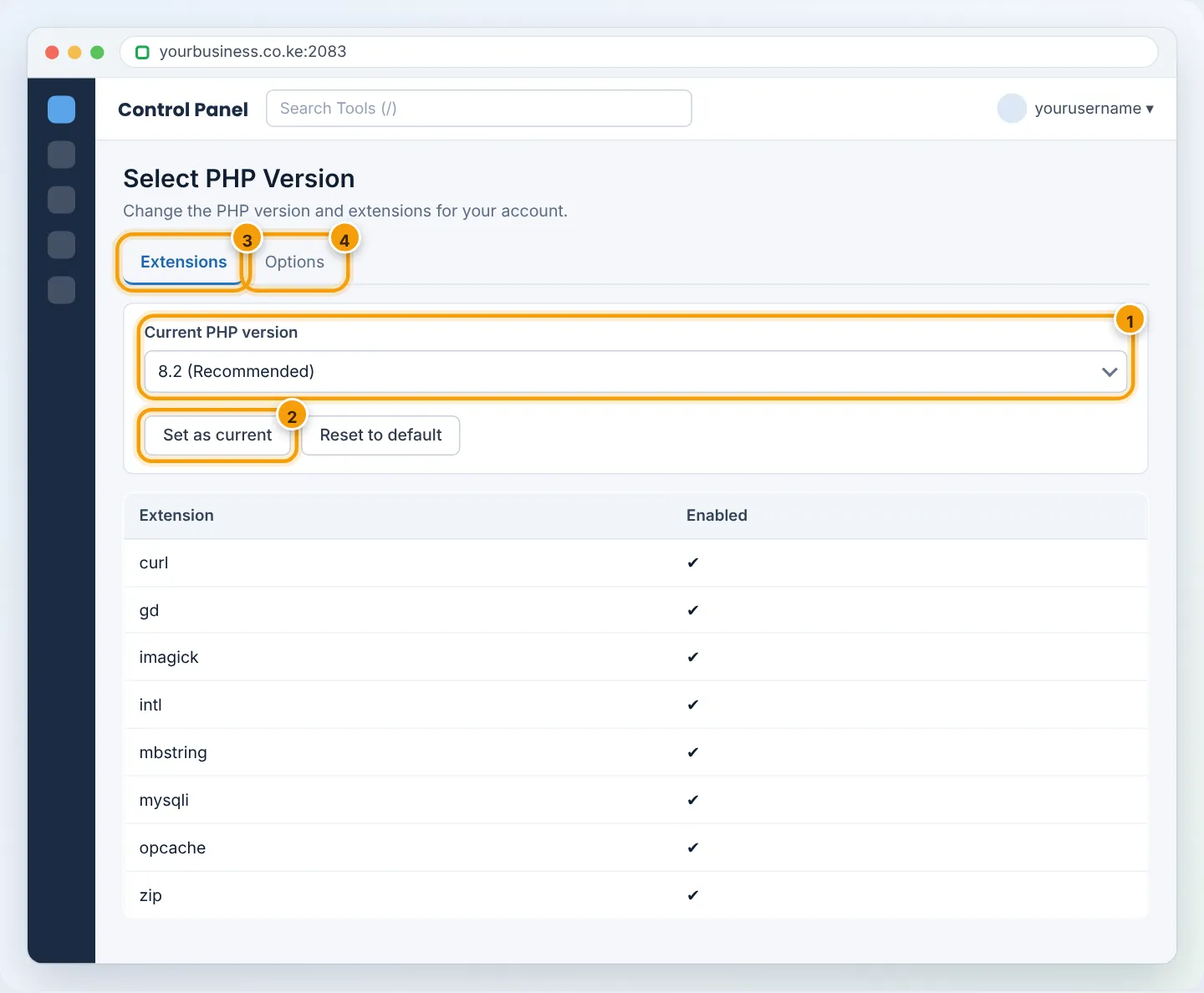
- Open the Current PHP version dropdown and pick the version (e.g. 8.2).
- The change is saved immediately — there is no separate Save button on the version itself.
- Open your website in a private window and click through key pages: home, a blog post, contact form, cart/checkout, and the admin login.
Step 3: Enable extensions your software needs
Under Extensions, tick any module your application asks for and it is enabled instantly. Common ones are already on. Examples:
| Software says it needs… | Tick |
|---|---|
| Image editing / thumbnails | gd or imagick |
| Multilingual / currency formatting | intl |
| ZIP imports, plugin updates | zip |
| Faster PHP (recommended) | opcache |
| Laravel / Composer projects | pdo_mysql, fileinfo, tokenizer, xml |
Step 4: Change PHP limits (Options)
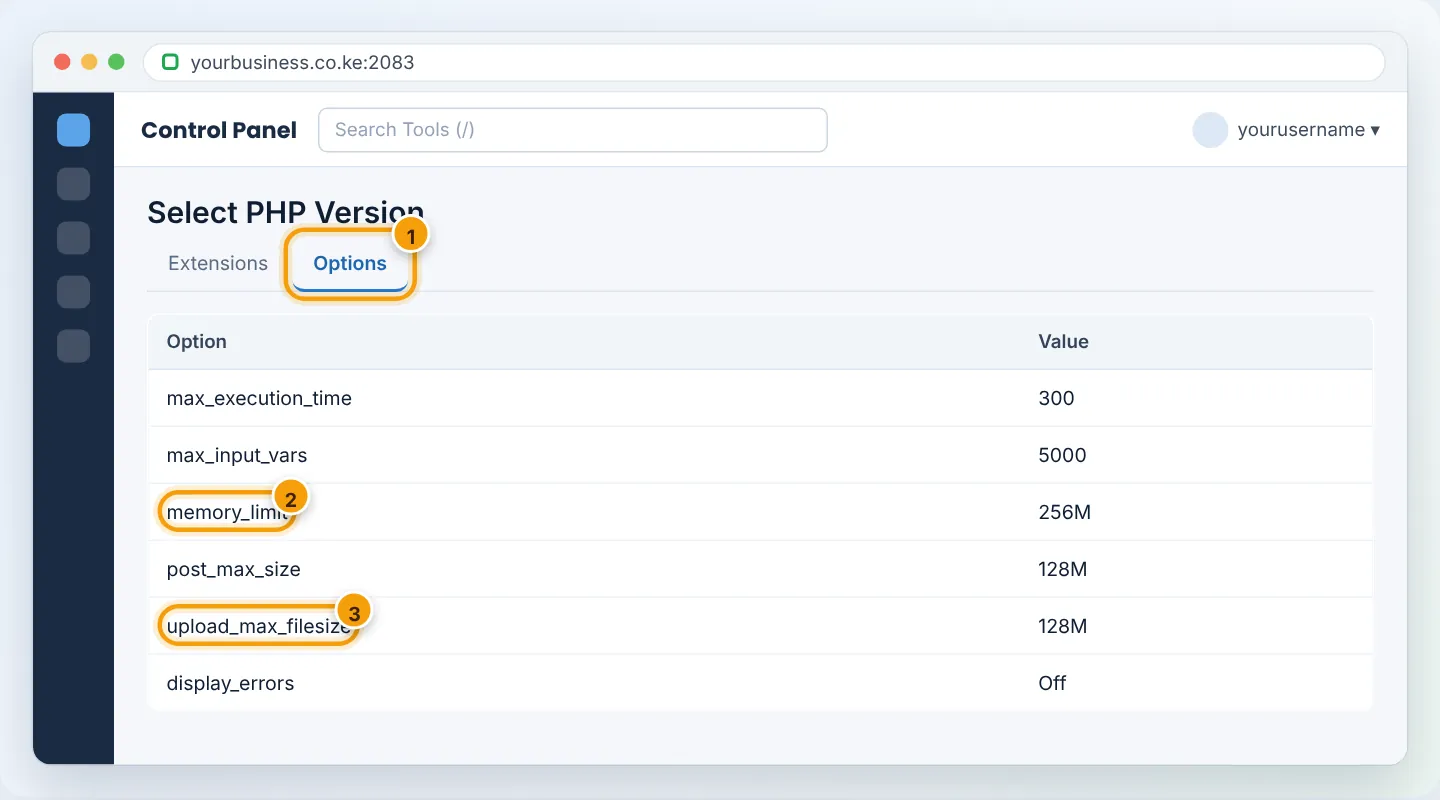
Open the Options tab and click a value to edit it. The most useful settings:
| Option | Good value | Why change it |
|---|---|---|
memory_limit |
256M (512M for big WooCommerce stores) | Fixes “Allowed memory size exhausted” errors |
upload_max_filesize |
64M–128M | Upload larger themes, plugins, videos |
post_max_size |
Same or larger than upload size | Must be ≥ upload_max_filesize |
max_execution_time |
120–300 | Long imports and backups stop timing out |
max_input_vars |
3000–5000 | Large menus or page-builder pages save fully |
display_errors |
Off on live sites | Prevents error details being shown to visitors |
Your plan's resource limits (CPU, RAM, processes) still apply. Setting memory_limit very high does not give a script more memory than your plan allows — if a site constantly needs more, consider a bigger plan.
If something breaks — roll back
- Go back to Select PHP Version and choose the previous version. The site normally recovers instantly.
- If you cannot reach cPanel, use one-click login from the client area, or WhatsApp us — we can switch it for you.
- Then find the incompatible plugin/theme: see WordPress white screen of death and 500 Internal Server Error.
Different PHP versions for different sites
If you host several domains and one needs an older version, use Software → MultiPHP Manager (where available) to set a version per domain. Otherwise ask support and we will configure it for you.
Troubleshooting
| Symptom after switching | Cause | Fix |
|---|---|---|
| White page or 500 error | Old plugin/theme incompatible | Switch back, update/replace the plugin, try again |
| “Your PHP installation appears to be missing the MySQL extension” | mysqli/pdo_mysql disabled |
Tick the extension |
| Uploads fail above 2 MB | Low upload_max_filesize/post_max_size |
Raise both in Options |
| Changes have no effect | Old php_value lines in .htaccess override settings |
Remove php_value lines from .htaccess or set them consistently |
Frequently asked questions
Will changing PHP version delete anything? No. It only changes how your code runs. Files and databases are untouched.
Does a newer PHP really make my site faster? Usually yes — PHP 8.x runs WordPress noticeably faster than 7.x, and uses less memory.
Figures are simplified illustrations. Your screen may look slightly different depending on your theme and the version of cPanel or the app you use.
Still need help?
Our Kenyan support team is on WhatsApp — real people, not bots. Mon–Sat, 8am–10pm EAT. Tickets are open 24/7.