
How to Create a MySQL Database and User in cPanel
Most websites — WordPress, Joomla, Laravel, school and SACCO systems — store their content in a MySQL database. If you are installing something by hand (not with Softaculous), you need to create the database first. This guide does it in four steps with the Database Wizard.
Installing WordPress with Softaculous? You do not need this guide — Softaculous creates the database for you. See Install WordPress.
How databases work on cPanel
A website connects using four details. You will create the first three in this guide:
| Detail | Example | Notes |
|---|---|---|
| Database name | yourbusi_shop |
cPanel adds your username prefix (yourbusi_) automatically |
| Database user | yourbusi_shopuser |
Also prefixed |
| Password | Hk7#… |
Generate a long random one |
| Host | localhost |
Always localhost for sites on the same hosting account |
Database limits per plan: Free 5, Tendeza 100, Biashara 200, Kampuni and Shirika unlimited.
Step 1: Open the Database Wizard
In cPanel, go to Databases → Database Wizard. (The Manage My Databases tool does the same thing on one page, if you prefer.)
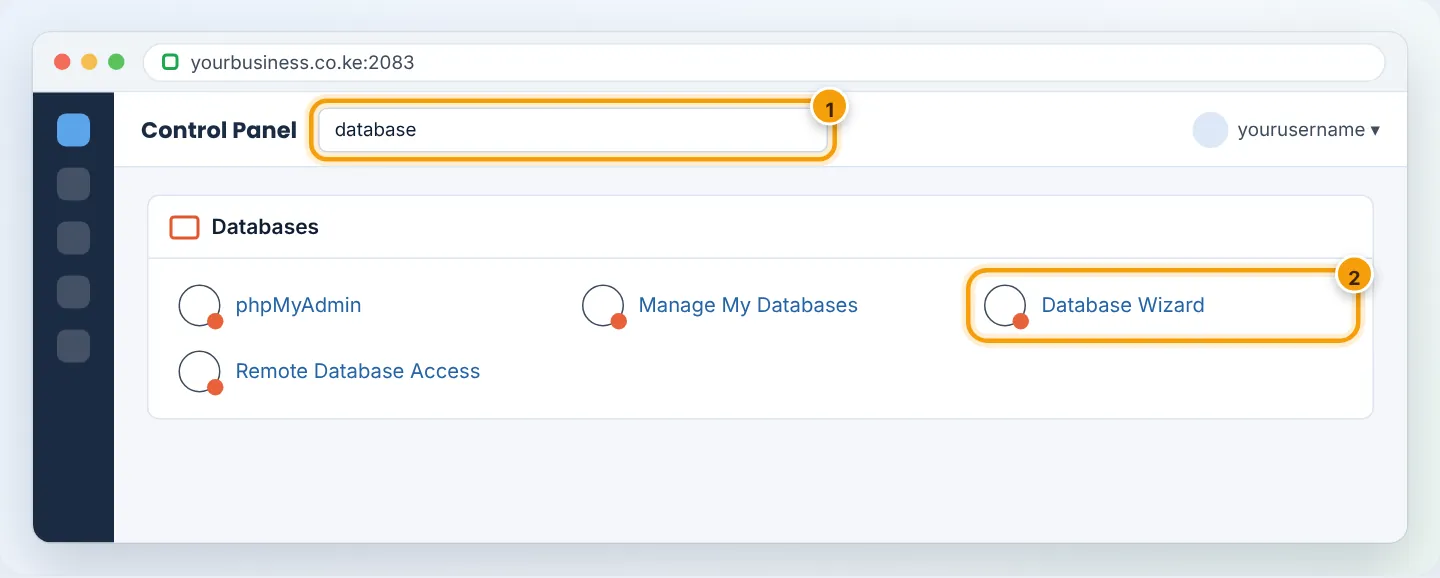
Step 2: Name the database
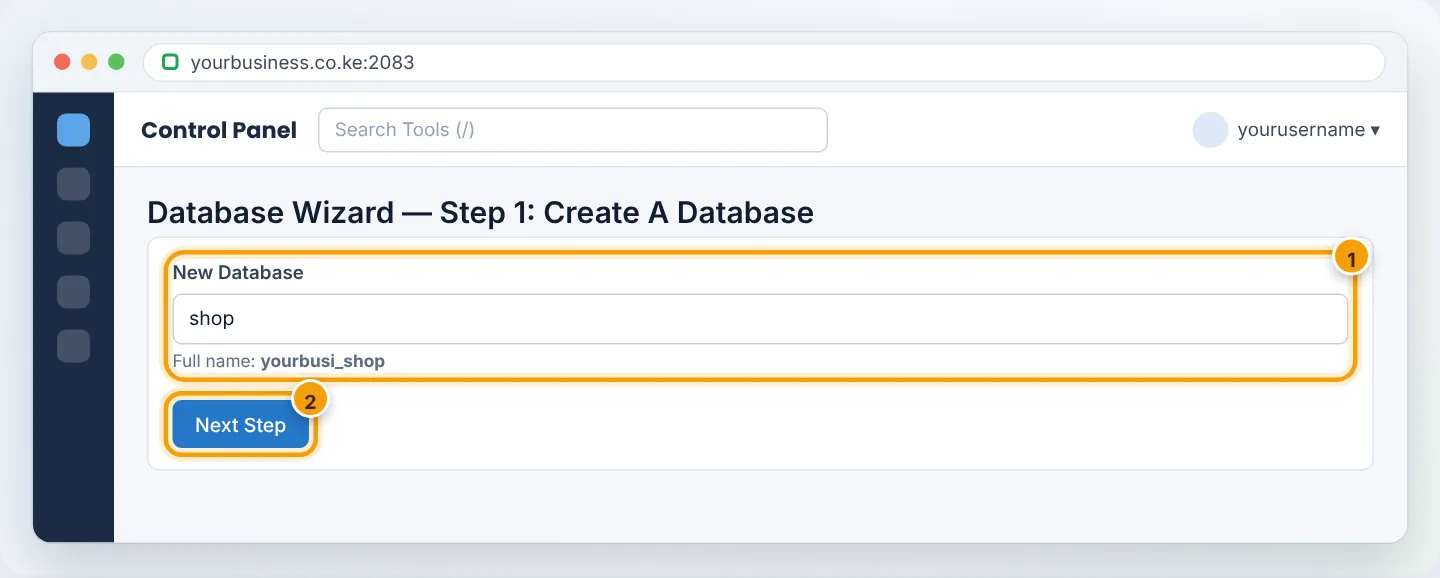
Type a short name describing its purpose — e.g. shop, school, crm. Use only lowercase letters, numbers and underscores. cPanel shows the full name (yourbusi_shop). Click Next Step.
Step 3: Create the database user
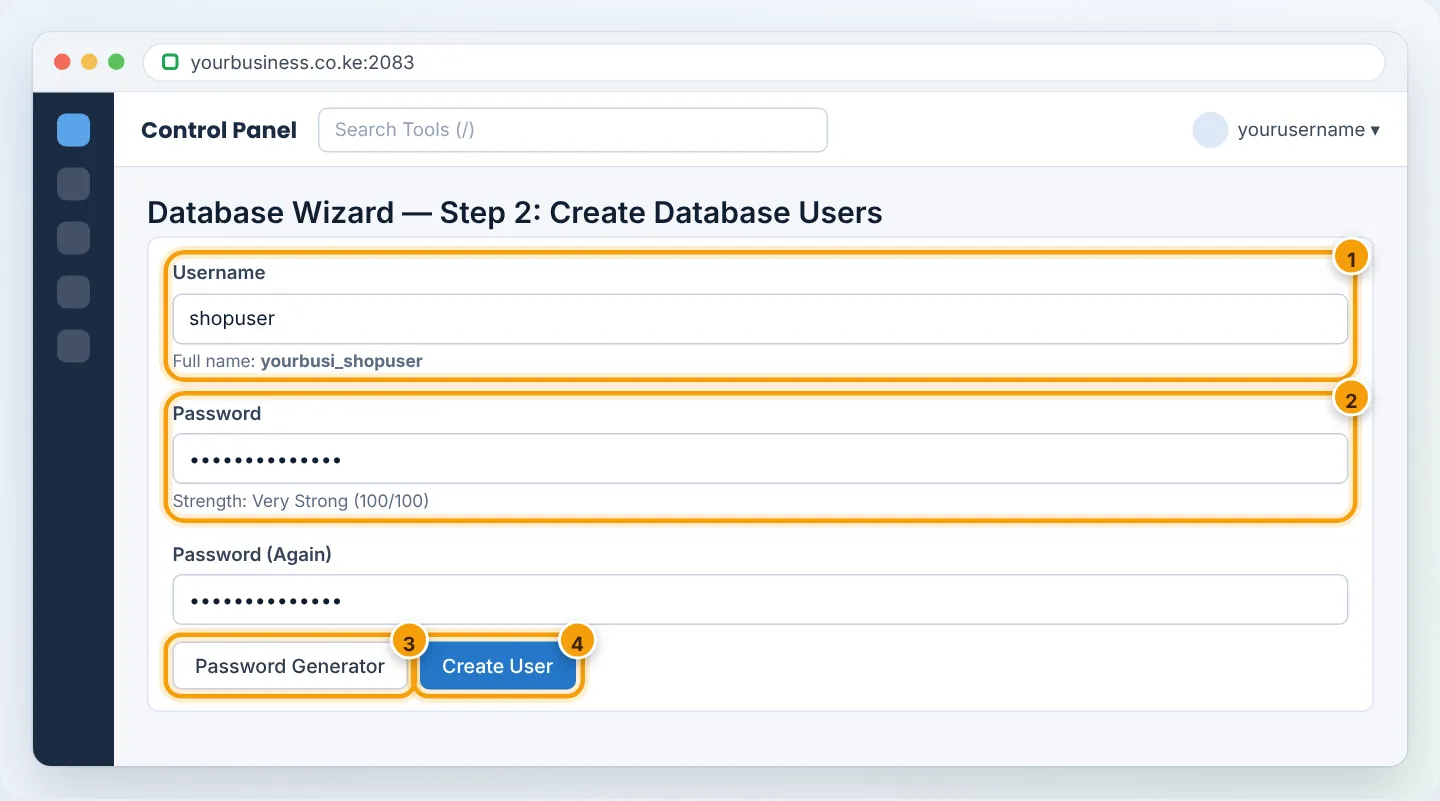
- Username: e.g.
shopuser(becomesyourbusi_shopuser). - Password: click Password Generator, then Use Password. Copy it now — you will paste it into your website's config file.
- Click Create User.
Step 4: Give the user privileges
On Step 3: Add user to the database, tick ALL PRIVILEGES and click Next Step. This lets your website read and write its own data. (Only untick items if your developer specifically asks for restricted rights.)
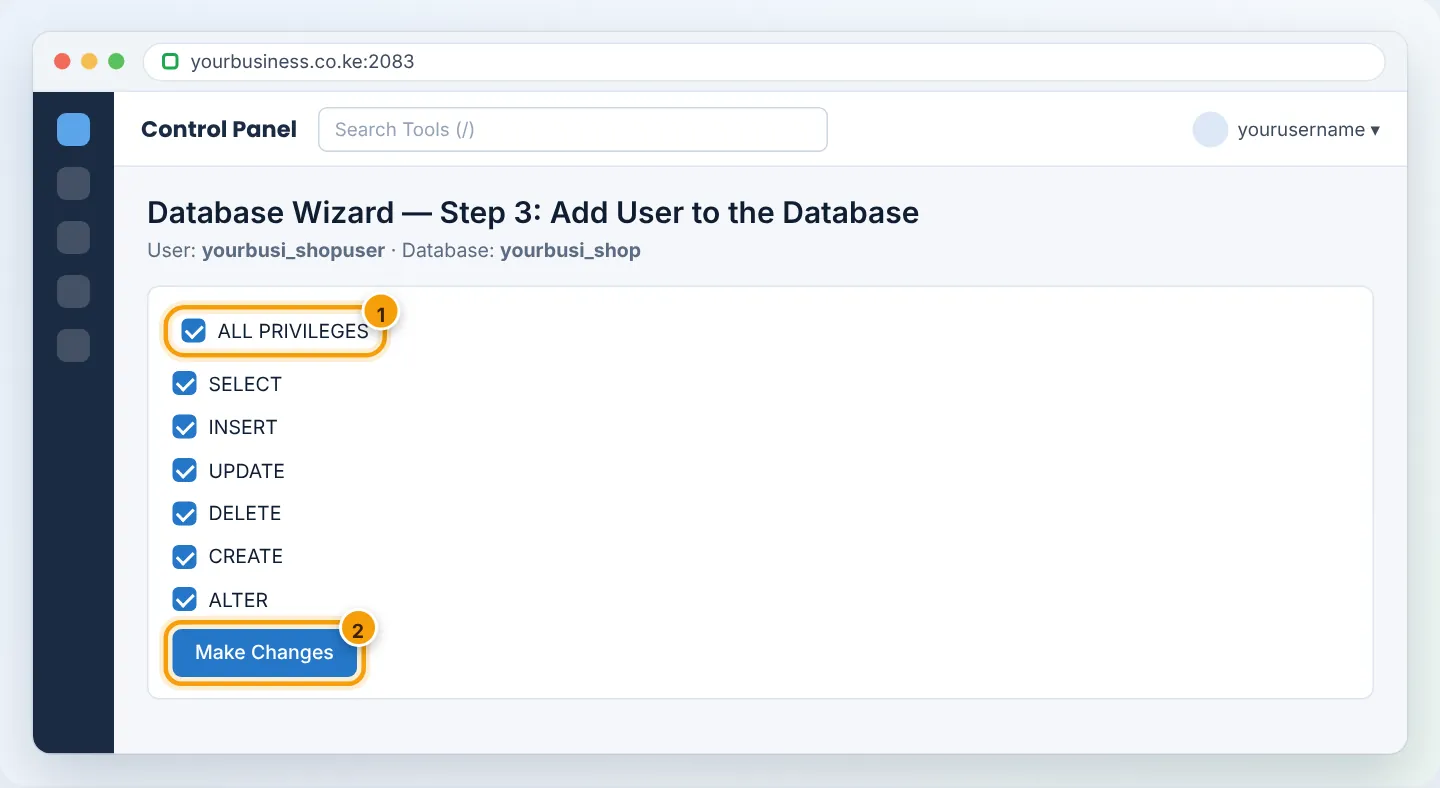
Step 4 confirms: “User yourbusi_shopuser was added to the database yourbusi_shop.”
Step 5: Connect your website
Put the details into your application's configuration. Examples:
WordPress (wp-config.php):
define( 'DB_NAME', 'yourbusi_shop' );
define( 'DB_USER', 'yourbusi_shopuser' );
define( 'DB_PASSWORD', 'Hk7tR9pQ2mXv8Lw' );
define( 'DB_HOST', 'localhost' );
Laravel (.env):
DB_CONNECTION=mysql
DB_HOST=localhost
DB_PORT=3306
DB_DATABASE=yourbusi_shop
DB_USERNAME=yourbusi_shopuser
DB_PASSWORD=Hk7tR9pQ2mXv8Lw
Then import any existing data — see Import and export with phpMyAdmin.
Managing databases later
Open Databases → Manage My Databases to:
- Check or Repair a database (useful after a crash).
- Change a user's password under Current Users → Change Password — then update your config file to match.
- Rename or Delete databases and users.
Deleting a database is permanent. Export it with phpMyAdmin first.
Remote connections (advanced)
To connect from a desktop tool or another server, add your IP address in Databases → Remote Database Access and use your domain name (not localhost) as the host, port 3306. Allow only the specific IPs you need — never %.
Troubleshooting
| Problem | Cause | Fix |
|---|---|---|
| “Error establishing a database connection” | Wrong name/user/password, or user not added to the database | Use the full prefixed names; re-run Step 4; see Fix database connection error |
| “Access denied for user” | Password mismatch | Change the user's password in Manage My Databases and update the config |
| “Name too long” | Prefix + name exceed 64 characters | Use a shorter name |
| Remote tool cannot connect | IP not allowed or port blocked by your network | Add your public IP in Remote Database Access |
Frequently asked questions
Can one user access several databases? Yes, but for security give each website its own user.
Where are databases backed up? In our daily backups on paid plans (kept 30 days), and in any full backup you generate. You can also export one at any time from phpMyAdmin.
Figures are simplified illustrations. Your screen may look slightly different depending on your theme and the version of cPanel or the app you use.
Still need help?
Our Kenyan support team is on WhatsApp — real people, not bots. Mon–Sat, 8am–10pm EAT. Tickets are open 24/7.