
My Website Has Been Hacked — What To Do Now
Spam pages in Google, redirects to betting or scam sites, strange admin users, or a warning from Google or your antivirus — these are signs your site has been compromised. Act quickly but calmly. Follow these steps in order, and contact us early: we can scan the server and help you clean up.
Signs your site may be hacked
- Visitors (especially on mobile or from Google) are redirected to other sites.
- Google shows “This site may be hacked” or Chrome shows a red warning page.
- Search results show pages you did not create (often pharmaceuticals, casinos, Japanese/Chinese text).
- Unknown admin users in WordPress, or users you did not add.
- Your hosting is sending spam (bounces you did not send, or email blacklisting).
- Unfamiliar files in
public_html— e.g.wp-xyz.php,admin.phpin uploads, random-name.phpfiles.
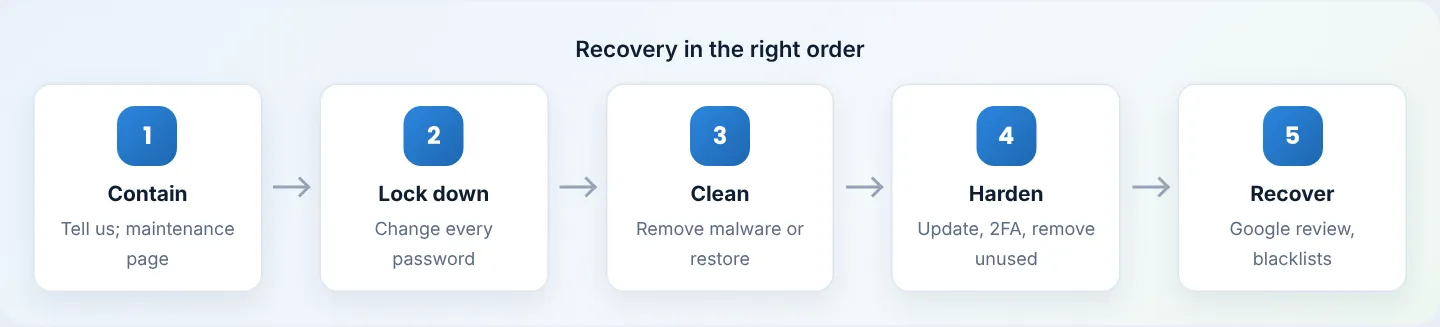
Step 1: Contact Braysons Host support
WhatsApp +254 733 338 989 (8am–10pm EAT) or open a ticket marked urgent any time. Tell us what you have seen and when it started. We can:
- scan your account at server level and list infected files,
- tell you how the attacker got in (from server logs),
- restore clean files or databases from our daily backups (paid plans, kept 30 days).
Step 2: Contain the damage
- Put up a maintenance page if visitors are being redirected to harmful sites: in File Manager, rename
index.phptoindex.php.offand upload a simpleindex.htmlsaying “We'll be back shortly.” (For WordPress, this keeps the admin reachable via/wp-adminfor cleanup.) - Do not delete everything in a panic — evidence in logs and files helps find the entry point.
- Download a copy of the current (infected) site for reference: Backup Wizard → Home Directory.
Step 3: Change every password
Assume all passwords connected to the site are known to the attacker. Change them from a clean, up-to-date computer:
| Password | Where to change |
|---|---|
| Client area | client.braysons.co.ke → Hello, Name → Change Password |
| cPanel | cPanel → Preferences → Password & Security |
| FTP accounts | cPanel → Files → FTP Accounts → Change Password (delete unused accounts) |
| Database user | cPanel → Manage My Databases → Current Users → Change Password, then update wp-config.php |
| WordPress admins | WordPress → Users → each admin → Set New Password |
| Email accounts | cPanel → Email Accounts → Manage (especially if spam was sent) |
Then turn on 2FA for cPanel and the client area — see Enable cPanel 2FA.
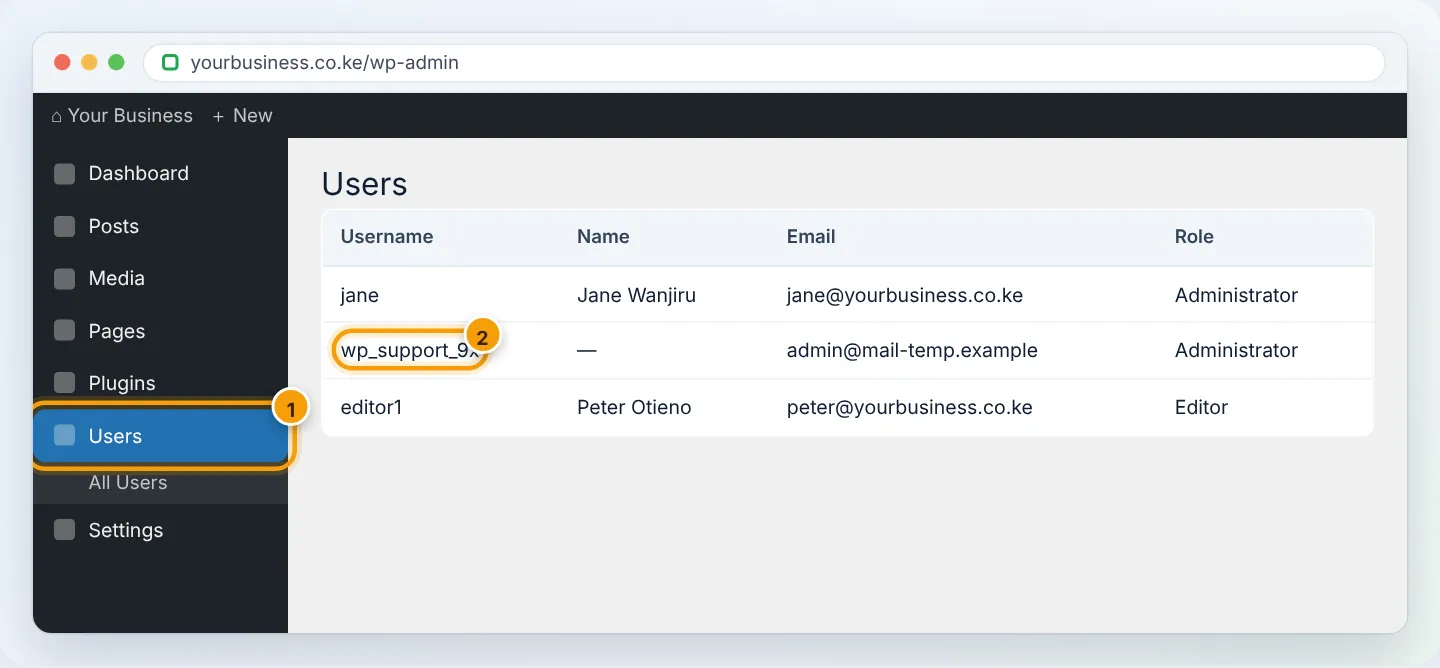
Step 4: Remove the malware
Choose A (cleanest) if you have a backup from before the hack; otherwise B.
A. Restore a clean backup
- Find a backup from before the first sign of the hack. With our daily backups you can go back up to 30 days: Files → File and Directory Restoration — see Back up and restore.
- Restore both files and database from the same date.
- Immediately update everything (Step 5) — the hole the attacker used is still in the old version.
B. Clean the site
For WordPress:
- Delete unknown admin users (above).
- Replace WordPress core: download a fresh WordPress from wordpress.org and replace the
wp-adminandwp-includesfolders completely. Keepwp-contentandwp-config.php. - Reinstall plugins and themes fresh from wordpress.org or the vendor — delete the old folders rather than trusting them. Delete any you do not use, and all “nulled”/pirated ones.
- Check
wp-content/uploadsfor.phpfiles — there should be none. Delete them. - Check
wp-config.phpand.htaccessfor unfamiliar code (long encoded strings,eval(,base64_decode(, redirects to other domains). - Scan: install Wordfence or Sucuri Security and run a full scan; review and clean what it reports.
Malware often hides in several places and re-infects a site. If the problem keeps returning, ask us for a server-level scan, or restore from a clean backup.
Step 5: Close the hole
- Update WordPress, every plugin and every theme — see Update WordPress safely.
- Switch to a supported PHP version (8.2/8.3) — see Change PHP version.
- Follow the hardening checklist in Secure your WordPress website — login limits, 2FA, file editing disabled, backups.
- Fix permissions: folders 755, files 644,
wp-config.php600.
Step 6: Recover your reputation
- Google Search Console: open Security & Manual Actions → Security issues. After cleaning, click Request a review and describe what you fixed. Reviews often complete within days.
- Remove spam pages from Google: delete them (they should return 404/410), then use Search Console → Removals for urgent ones.
- Email blacklists: check at mxtoolbox.com/blacklists.aspx; tell us if you are listed — we request delisting.
- Tell your customers if any personal data may have been exposed. Kenya's Data Protection Act may require notifying the Office of the Data Protection Commissioner — get advice if you handle personal data.
Step 7: Keep watching for 2 weeks
- Run security scans daily for a week, then weekly.
- Check WordPress → Users and Plugins for changes.
- Watch Metrics → Errors and Email → Track Delivery for unusual activity.
Frequently asked questions
How did they get in? Most commonly: an outdated plugin or theme, a pirated (nulled) plugin, a weak or reused password, or a compromised computer that stored FTP/cPanel passwords. We can usually tell from the logs.
Will restoring a backup lose my recent orders or posts? Yes — anything after the backup date is lost. Export recent orders/posts first, or choose cleaning (B) instead.
Can my site be hacked again? Only if the original weakness remains. Updating, removing unused plugins, unique passwords and 2FA close the common doors.
Figures are simplified illustrations. Your screen may look slightly different depending on your theme and the version of cPanel or the app you use.
Still need help?
Our Kenyan support team is on WhatsApp — real people, not bots. Mon–Sat, 8am–10pm EAT. Tickets are open 24/7.