
How to Update WordPress, Themes and Plugins Safely
Outdated plugins are the number-one way WordPress sites get hacked. But updates can occasionally break things, so many owners avoid them. This routine takes 10–15 minutes a week and gives you the safety of updates without the risk.
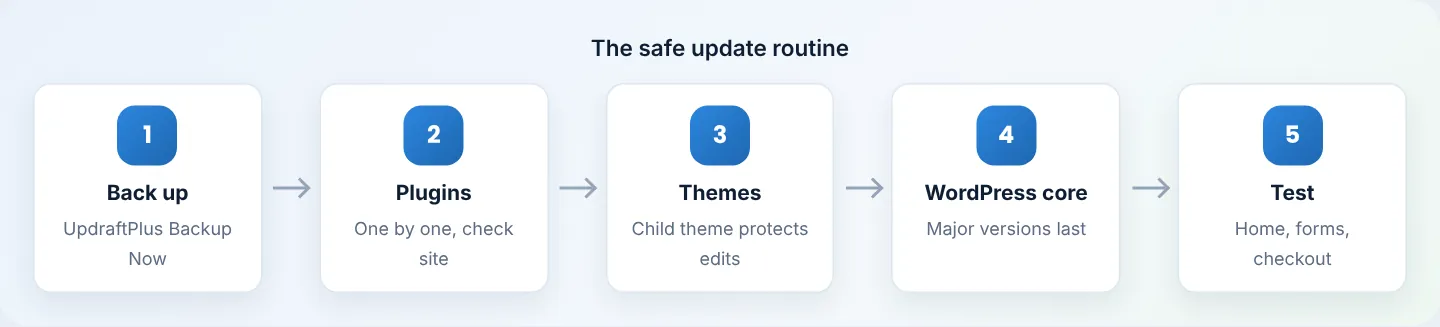
Step 1: Back up
Settings → UpdraftPlus Backups → Backup Now (database + files) — see Back up WordPress. For big changes (WooCommerce major version, theme switch, PHP upgrade), use a staging site first.
Step 2: See what needs updating
Dashboard → Updates lists WordPress core, plugins, themes and translations with available updates. Read the changelog link for big plugins — a major version (e.g. 8.x → 9.0) deserves extra care.
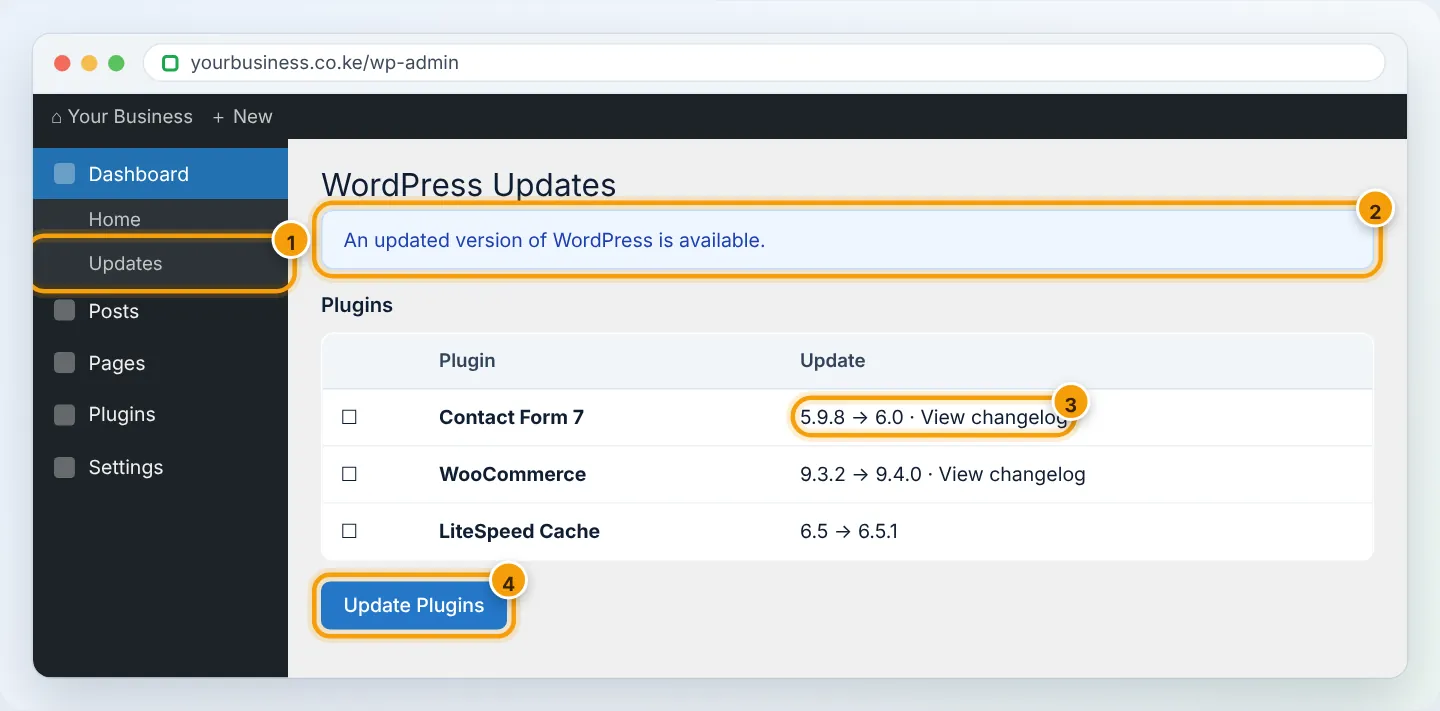
Step 3: Update plugins — a few at a time
- Update one plugin at a time (or small groups of minor updates), then load your homepage in a private window.
- Update critical plugins (WooCommerce, page builder, membership) on their own and test the related pages.
- Tick Enable auto-updates (Plugins page) for small, well-maintained plugins you trust; keep manual control for big ones.
Step 4: Update themes
- If you customised your theme's files directly, updates overwrite those changes. Use a child theme for custom code, or keep a copy of your edits.
- Premium themes need a license key for updates — add it in the theme's settings.
Step 5: Update WordPress core
- Minor/security releases (6.8.1 → 6.8.2) install automatically — leave that on.
- Major releases (6.8 → 6.9): wait a week or two for plugin authors to catch up, then update via Dashboard → Updates → Update to version ….
Step 6: Test the important things
| Check | How |
|---|---|
| Homepage and main pages look right | Private window, desktop and phone |
| Contact form sends | Submit a test |
| Shop works | Add to cart → checkout (test payment or cancel) |
| Logins work | Log out and back in |
| No errors | Check wp-content/debug.log if enabled, or cPanel → Metrics → Errors |
Then purge your cache (LiteSpeed Cache → Purge All).
If an update breaks something
- Can still log in? Go to Plugins and deactivate the plugin you just updated. Install the previous version with the free WP Rollback plugin, and report the problem to its developer.
- Can't log in (white screen / critical error)? In cPanel File Manager rename
wp-content/plugins/plugin-nametoplugin-name-off— see Fix the white screen of death. - Something bigger broke? Restore the backup you took in Step 1 — see Restore WordPress.
WP Toolkit (cPanel → Domains → WordPress Management) can also update everything and offers Smart Updates on some setups — it tests updates on a hidden copy first and only applies them if the site still looks the same.
How often?
| What | Frequency |
|---|---|
| Security updates (any plugin flagged as a security fix) | Same day |
| Plugins and themes | Weekly |
| Major WordPress versions | Within 2–4 weeks of release |
| Review & delete unused plugins | Monthly |
Troubleshooting
| Problem | Cause | Fix |
|---|---|---|
| “Briefly unavailable for scheduled maintenance” stuck | An update was interrupted | Delete the .maintenance file in public_html via File Manager |
| “Update failed: Could not create directory” | Disk full or permissions | Check Disk Usage; folders 755 |
| “Download failed: unauthorized” | Premium plugin needs license | Enter license key in plugin settings |
| Update requires newer PHP | Old PHP version | Switch to PHP 8.2+ |
Figures are simplified illustrations. Your screen may look slightly different depending on your theme and the version of cPanel or the app you use.
Still need help?
Our Kenyan support team is on WhatsApp — real people, not bots. Mon–Sat, 8am–10pm EAT. Tickets are open 24/7.