
How to Turn On Two-Factor Authentication (2FA) for cPanel
A stolen password is the most common way websites get hacked. Two-factor authentication (2FA) adds a second step — a code from an app on your phone — so a password alone is not enough to get into your cPanel. Setup takes three minutes.
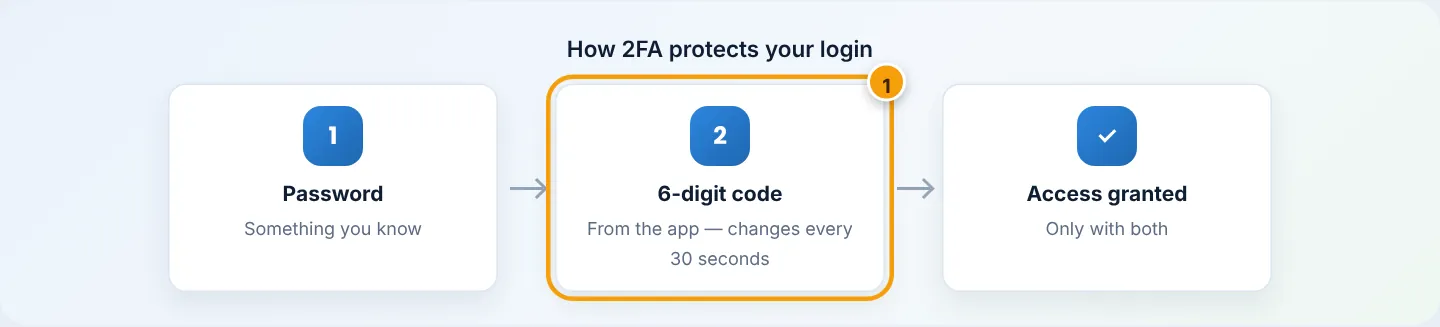
Step 1: Install an authenticator app
On your phone, install one of these free apps from the Play Store or App Store:
- Google Authenticator
- Microsoft Authenticator
- Authy, 1Password or Bitwarden (also work)
Choose an app that can back up your codes (Microsoft Authenticator, Google Authenticator with your Google account, Authy). If you change phones, your codes move with you.
Step 2: Open Two-Factor Authentication in cPanel
In cPanel, go to Security → Two-Factor Authentication (or search for 2fa) and click Set Up Two-Factor Authentication.
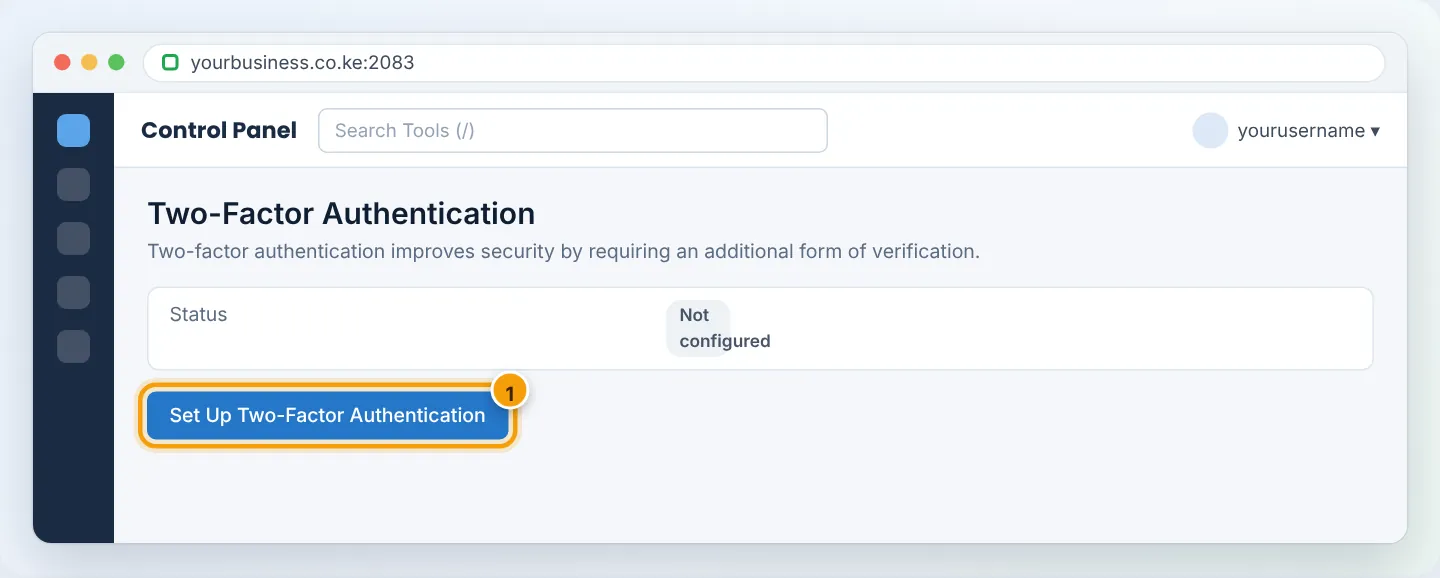
Step 3: Scan the QR code
- In your authenticator app, tap + → Scan a QR code.
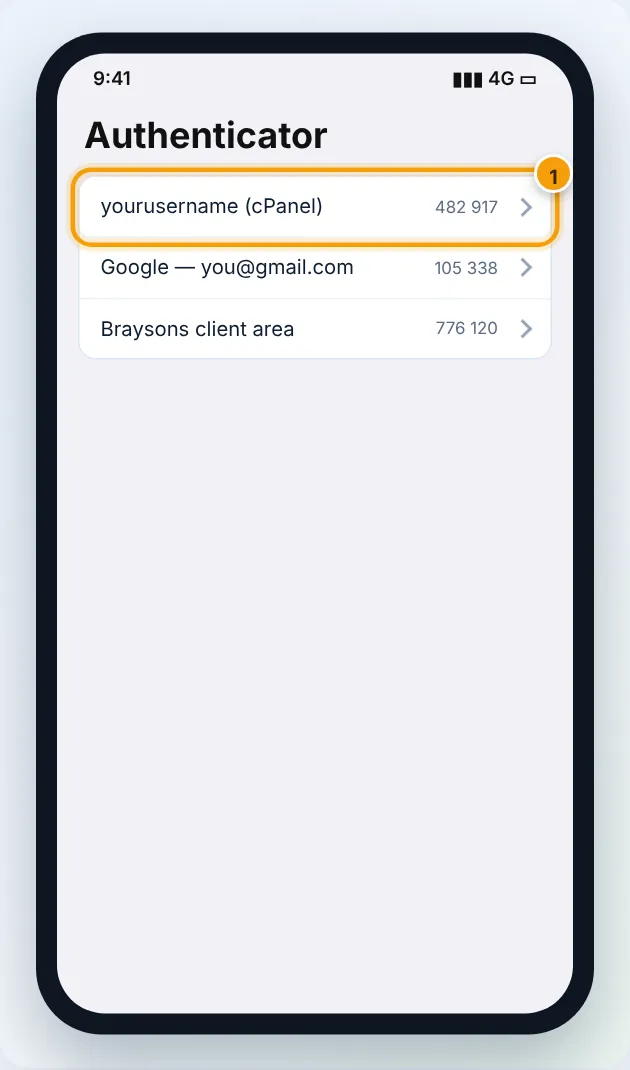
- Point the camera at the QR code on the cPanel page. A new entry appears, named after your account/server, showing a 6-digit code.
- Can't scan? Choose Enter a setup key in the app and type the Account and Key shown under the QR code.
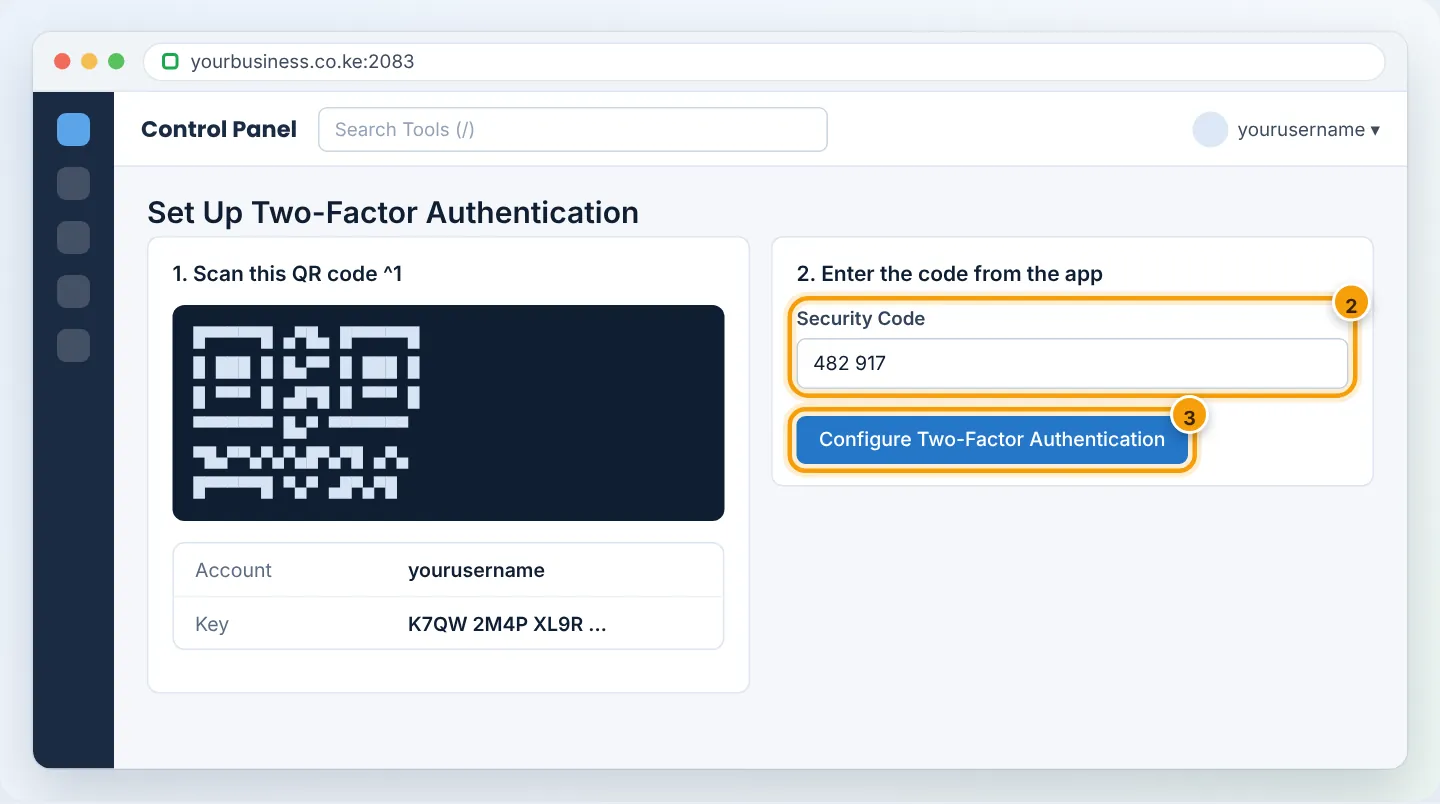
Step 4: Confirm with a code
Type the current 6-digit code from the app into Security Code and click Configure Two-Factor Authentication. You will see “Success: Two-factor authentication is now configured on your account.”
Before leaving the page, save the setup key (the letters under the QR code) somewhere safe and offline — for example printed and kept with your business documents. It lets you re-add 2FA to a new phone. Treat it like a password.
Step 5: Log in with 2FA
Next time you log in at yourbusiness.co.ke:2083, cPanel asks for the Security Code after your password. Open the app and type the current code.
One-click login from the client area (client.braysons.co.ke) skips the cPanel code — so also turn on 2FA for your client area: see Update your account details and security.
Lost your phone?
- If your app backs up codes, install it on the new phone and sign in — the codes return.
- If you saved the setup key, add it to a new app manually.
- Otherwise log in to the client area and use one-click cPanel login, then in cPanel go to Two-Factor Authentication → Remove and set it up again on the new phone.
- Still stuck? Open a ticket from your registered client-area email or WhatsApp us — we will verify your identity and reset 2FA.
Troubleshooting
| Problem | Cause | Fix |
|---|---|---|
| “The security code is invalid” | Phone clock is wrong (codes are time-based) | Set the phone's date & time to Automatic |
| Code expires while typing | Codes last 30 seconds | Wait for a fresh code and type it promptly |
| Old entry after re-setup | The previous key is still in the app | Delete the old entry in the app |
| Developer needs access | 2FA is tied to your phone | Give them an FTP account or a cPanel sub-user instead of your main login |
Frequently asked questions
Does 2FA apply to email and FTP? No — it protects the cPanel login. Use strong unique passwords for email and FTP accounts too.
Can I use SMS codes instead? cPanel 2FA uses authenticator apps (TOTP), which are more secure than SMS and work without network signal.
Figures are simplified illustrations. Your screen may look slightly different depending on your theme and the version of cPanel or the app you use.
Still need help?
Our Kenyan support team is on WhatsApp — real people, not bots. Mon–Sat, 8am–10pm EAT. Tickets are open 24/7.