
How to Fix a Full Mailbox (“Quota Exceeded”)
When a mailbox reaches its storage limit, new emails bounce back to the sender with “mailbox full” or “quota exceeded” — customers think you have gone quiet. You can fix it in minutes by raising the limit, cleaning up, or both.
Signs a mailbox is full
- Senders receive bounces such as “552 5.2.2 Mailbox full”, “The email account that you tried to reach is over quota”.
- Outlook or your phone shows “Quota exceeded” or cannot move mail to folders.
- In cPanel the mailbox shows a red bar near 100%.
Step 1: Check usage
In cPanel, go to Email → Email Accounts. The Storage: Used / Allocated column shows each mailbox.
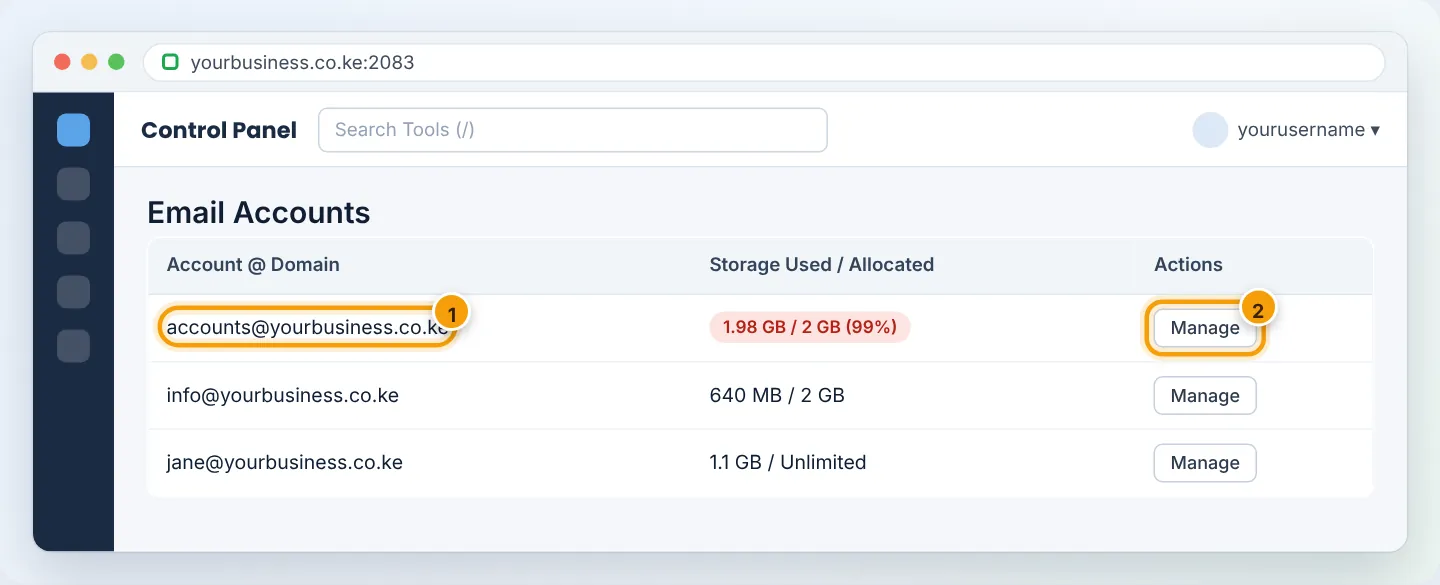
Step 2 (quick fix): Increase the quota
- Click Manage next to the mailbox.
- Under Storage, enter a bigger number (e.g. 5120 MB = 5 GB) or choose Unlimited.
- Click Update Email Settings.
New mail is accepted immediately. Mailbox storage counts toward your plan's disk space (35–250 GB on paid plans) — check overall space in Disk Usage.
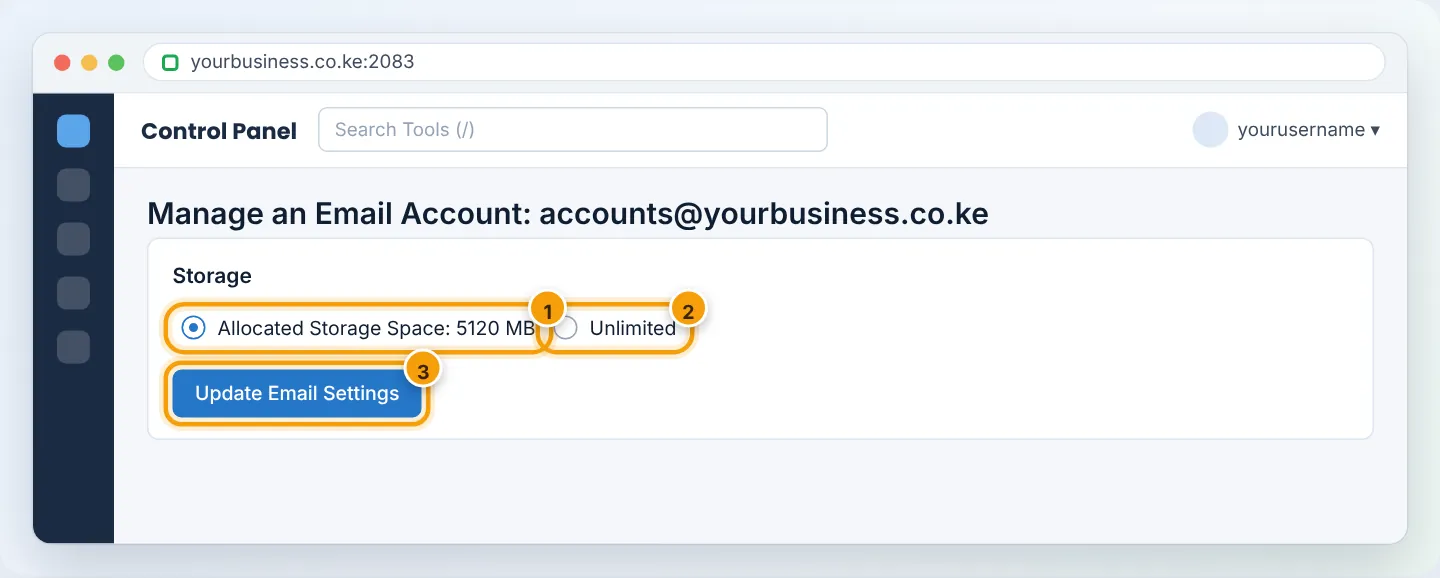
Step 3: Find what is taking the space
Go to Email → Email Disk Usage, choose the mailbox, and see the size of each folder. The usual culprits:
| Folder | Why it grows | Safe action |
|---|---|---|
| Sent | Every attachment you ever sent | Delete old messages with large attachments |
| Trash / Deleted Items | Deleted mail is not really gone until emptied | Empty it |
| Junk / Spam | Years of spam | Empty it |
| Inbox | Big attachments (PDFs, scans, photos) | Save attachments to your computer/cloud, then delete the emails |
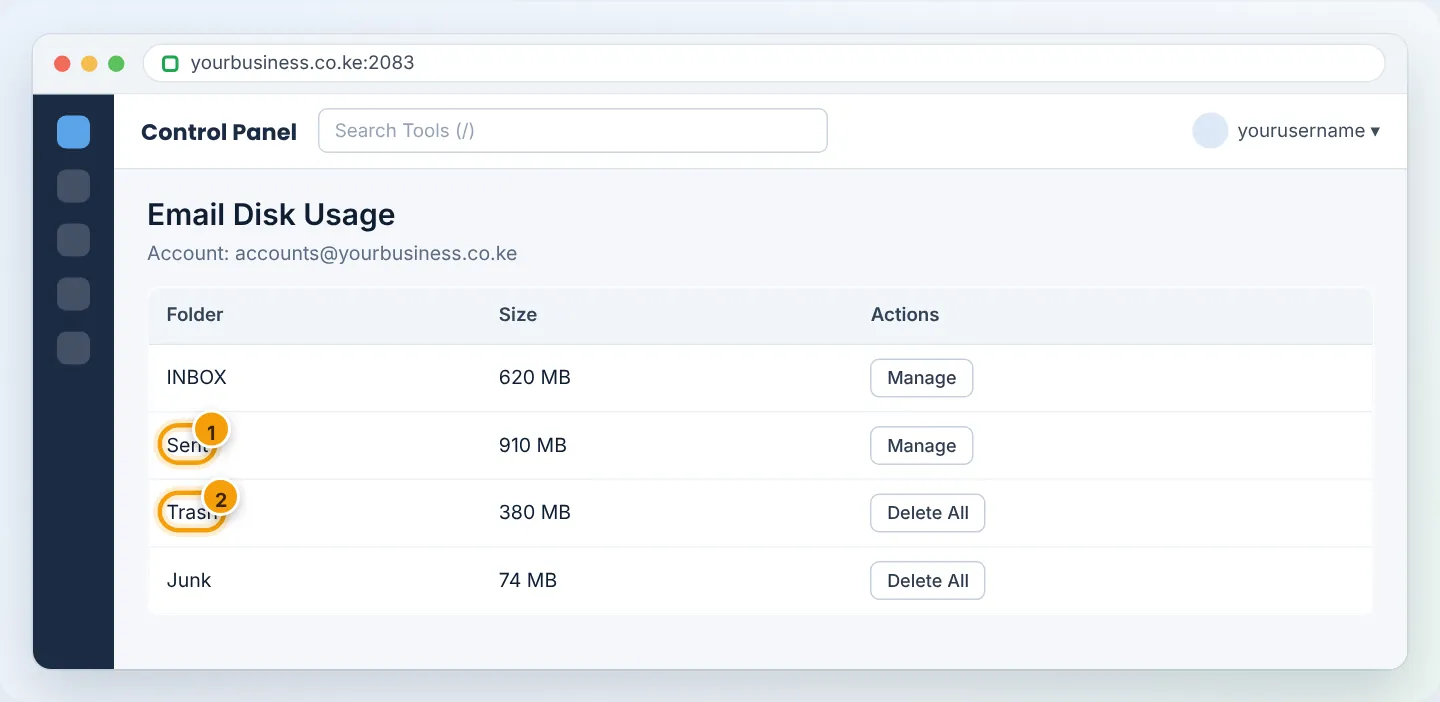
In Email Disk Usage you can delete messages in bulk by folder and age (e.g. Messages older than 1 year in Trash). Choose carefully — deleted mail cannot be recovered except from backups.
Step 4: Clean up in webmail or Outlook
- Sort by size: in webmail or Outlook, sort a folder by Size to find the biggest messages first.
- Empty Trash and Junk.
- Archive old mail locally: in Outlook, move old years into an Outlook Data File (.pst) on your computer (File → Open & Export → Import/Export, or Tools → Archive). Keep a copy of the .pst file in your backups.
Before deleting anything you may need for KRA or audits, export or archive it first. Accounting mailboxes often need records kept for several years.
Step 5: Prevent it
- Give busy role mailboxes (accounts@, info@) bigger quotas from the start.
- Share large files as Google Drive / OneDrive links instead of attachments.
- Turn on Spam Filters with Auto-Delete Spam so junk does not pile up — see Spam filters.
- Review Email Disk Usage monthly.
Troubleshooting
| Problem | Cause | Fix |
|---|---|---|
| Quota raised but mail still bounces | Account disk is full overall | Free space or upgrade — see Disk Usage |
| Deleted mail but usage did not drop | Trash not emptied, or usage figure not refreshed | Empty Trash; wait a few minutes and refresh |
| Phone shows full but cPanel does not | App caches old state | Refresh / remove and re-add the account |
| Senders got bounces while full | Mail was rejected, not queued | Ask senders to resend important messages |
Figures are simplified illustrations. Your screen may look slightly different depending on your theme and the version of cPanel or the app you use.
Still need help?
Our Kenyan support team is on WhatsApp — real people, not bots. Mon–Sat, 8am–10pm EAT. Tickets are open 24/7.