
How to Block Spam With cPanel Spam Filters and Email Filters
Spam wastes time and fills mailboxes. Braysons Host includes server-side spam filtering (Apache SpamAssassin) that scores every incoming email. Switch it on, tune it, and add simple filters for the stubborn ones.
How spam scoring works
Every incoming email gets a spam score based on hundreds of tests (suspicious words, blacklisted senders, missing authentication, odd formatting). The higher the score, the more likely it is spam. You choose the score at which mail is treated as spam.
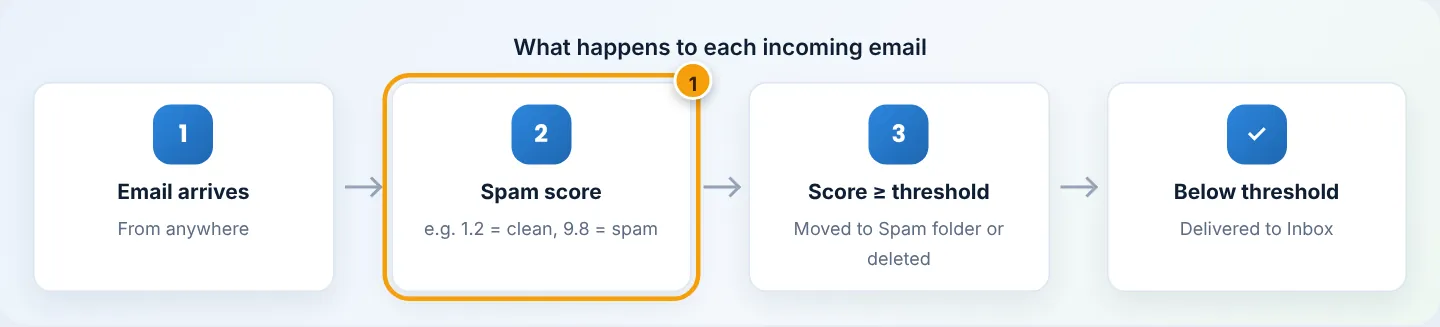
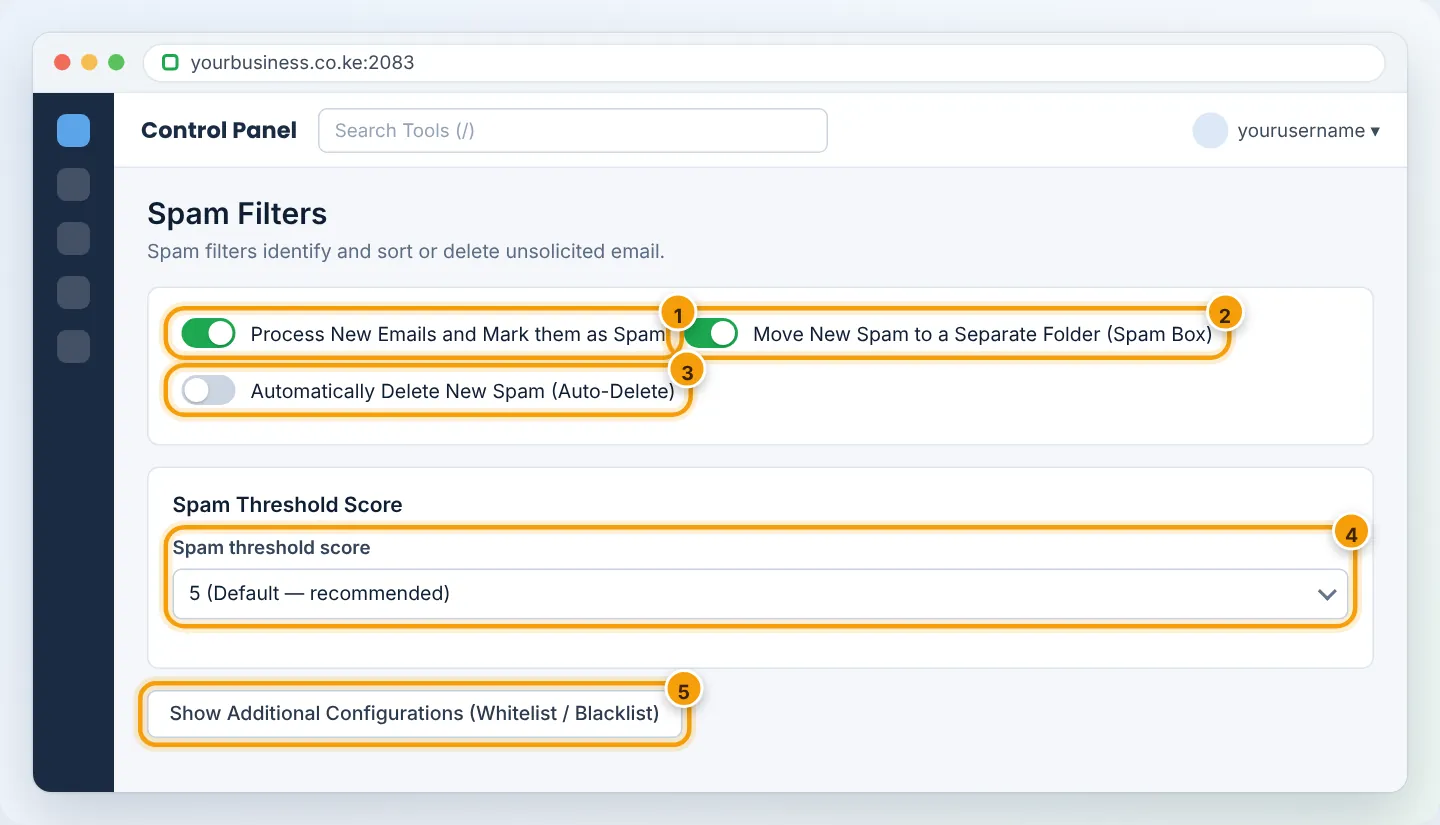
Step 1: Turn on spam filtering
- In cPanel, go to Email → Spam Filters.
- Make sure Process New Emails and Mark them as Spam is On (enabled by default on most accounts).
- Turn Move New Spam to a Separate Folder (Spam Box) On — spam goes to a spam folder instead of your inbox.
Step 2: Choose the threshold
| Threshold | Effect |
|---|---|
| 8–10 | Lenient — very little legitimate mail caught; more spam gets through |
| 5 (default) | Balanced — recommended starting point |
| 3–4 | Strict — catches more spam, but some genuine emails may land in the Spam folder |
| 1–2 | Very strict — not recommended for business mail |
Start at 5. If plenty of spam still reaches your inbox after a week, try 4.
Step 3: Auto-delete (optional, careful)
Automatically Delete New Spam permanently deletes mail scoring at or above its own threshold (set it high, e.g. 10, so only obvious spam is deleted). Never auto-delete at a low score — you could lose customer emails without knowing.
Step 4: Whitelist important senders
Banks, KRA, your suppliers or clients sometimes trigger spam rules. Under Show Additional Configurations → Edit Spam Whitelist (Always allow), add:
- a full address:
notifications@yourbank.co.ke - a whole domain:
*@kra.go.ke
Step 5: Blacklist persistent senders
Under Edit Spam Blacklist (Always mark as spam) add addresses or domains that keep sending junk, e.g. *@spammy-marketing.example.
Step 6: Email Filters for specific rules
For more control — like deleting anything with a certain subject — use Email → Email Filters (one mailbox) or Global Email Filters (all mailboxes).
- Choose the mailbox → Create a New Filter.
- Rules: e.g. Subject — contains —
crypto investment. - Actions: Discard Message, Redirect to Email, or Deliver to Folder (e.g.
Junk). - Create. Use Test Filter with a sample message first.
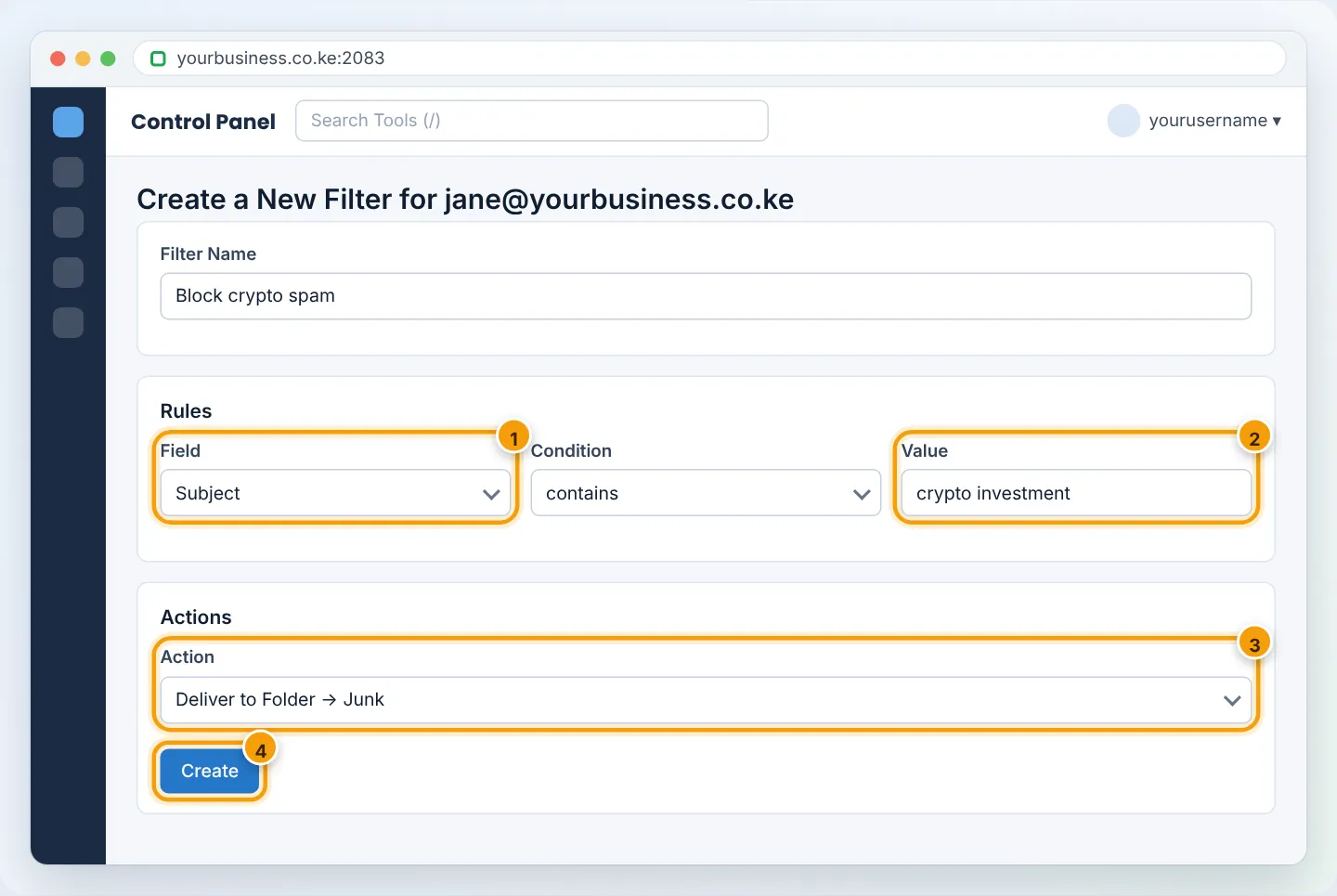
Prefer Deliver to Folder → Junk over Discard for new rules. Check the Junk folder for a week to make sure the rule is not catching real emails.
Step 7: Check the Spam folder regularly
Look in the spam folder (webmail → spam or Junk) once a day at first. Move any genuine email back to the inbox and whitelist the sender.
Troubleshooting
| Problem | Cause | Fix |
|---|---|---|
| Genuine emails in Spam folder | Threshold too strict, or sender poorly configured | Raise threshold by 1; whitelist sender |
| Still lots of spam in inbox | Filtering off or threshold too high | Turn on processing; lower to 4 |
| Spam folder not visible in phone app | Folder not subscribed | Subscribe to spam folder in the app or webmail |
| Spam appears to come from your own address | Spoofing | Set up SPF, DKIM and DMARC — see SPF, DKIM, DMARC |
Frequently asked questions
Is spam filtering included? Yes, on all plans at no extra cost.
Does filtering slow down email? No — scoring takes a fraction of a second.
Figures are simplified illustrations. Your screen may look slightly different depending on your theme and the version of cPanel or the app you use.
Still need help?
Our Kenyan support team is on WhatsApp — real people, not bots. Mon–Sat, 8am–10pm EAT. Tickets are open 24/7.