
How to Check Disk Usage and Free Up Space
When your hosting runs out of space, uploads fail, emails bounce and WordPress cannot update. The good news: it is usually a few big items — old backups, a full mailbox or cache files — and you can find them in two minutes.
Storage on each plan
| Plan | NVMe storage |
|---|---|
| Free | 1 GB |
| Tendeza | 35 GB |
| Biashara | 60 GB |
| Kampuni | 150 GB |
| Shirika | 250 GB |
Everything on the account counts: website files, databases, email messages, backups you generate and log files.
Signs you are running out of space
- WordPress shows “Could not create directory” or updates fail.
- Uploads stop with “Disk quota exceeded”.
- Emails bounce back with “mailbox full” or “quota exceeded”.
- cPanel's statistics panel shows Disk Usage in orange or red.
Step 1: See the total
On the cPanel home page, look at the right-hand Statistics panel → Disk Usage (e.g. 33.1 GB / 35 GB). Over 90% means act now.
Step 2: Find what is using it
Go to Files → Disk Usage. The page lists each top-level folder and its size, plus databases and email. Scroll down to the folder tree and click the arrows to drill into big folders.
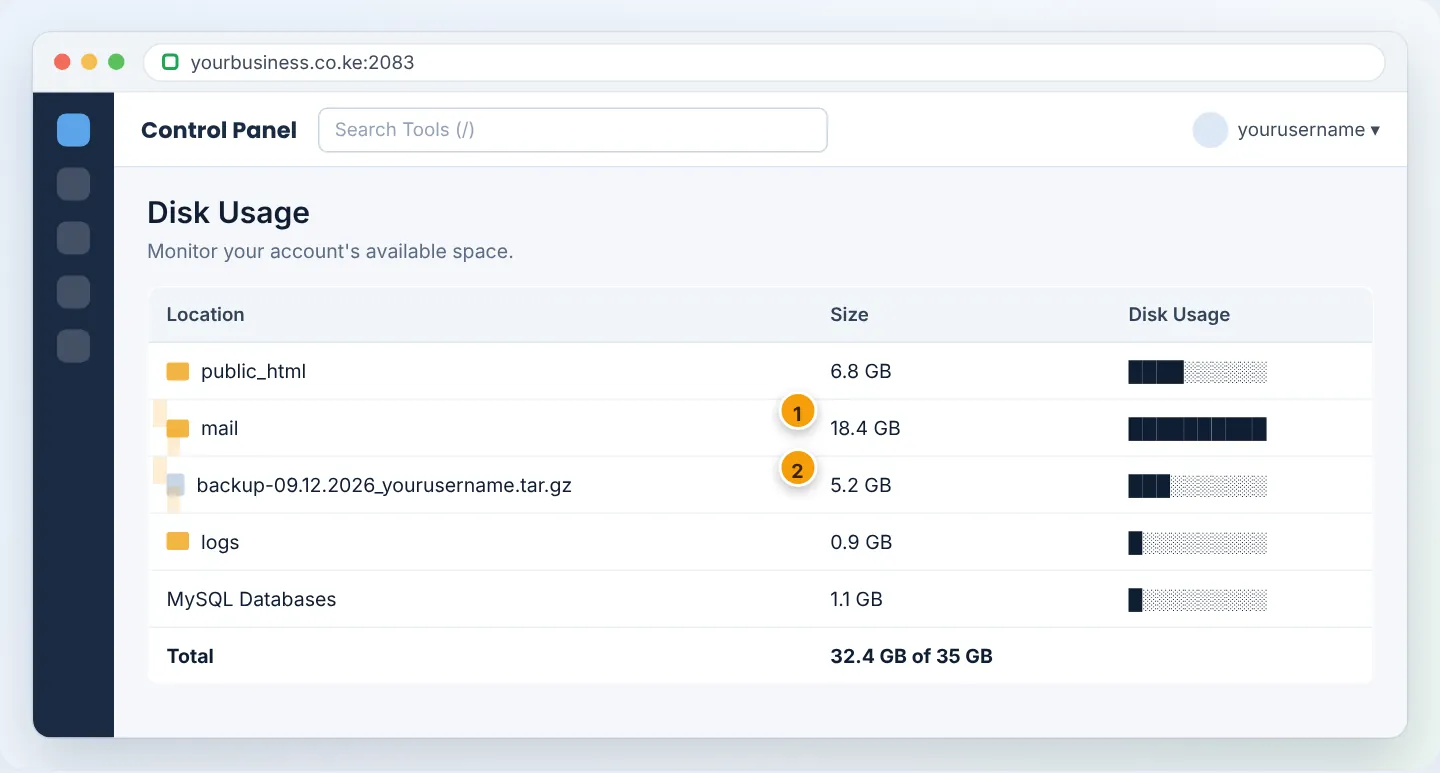
For email, open Email → Email Disk Usage to see which mailbox (and which folder inside it — often Sent or Trash) is biggest.
Step 3: Free up space safely
Work through the usual suspects, biggest first:
| What | Where | Safe action |
|---|---|---|
Old backup archives (backup-*.tar.gz, .zip) |
Home folder or public_html |
Download to your computer, then delete from the server |
| Big mailboxes | mail/ |
Empty Trash and Spam; delete or archive old Sent items; see Fix a full mailbox |
| WordPress backup plugin files | wp-content/updraft, ai1wm-backups, backups-dup-pro |
Keep the latest one, store copies in Google Drive, delete the rest |
| Cache folders | wp-content/cache, lscache |
Purge from the cache plugin (they rebuild automatically) |
| Error logs | public_html/error_log, logs/ |
Fix the repeating error, then delete the log |
| Unused sites/installs | Old folders like public_html/old, test, wp-old |
Back up, then delete |
| Huge images and videos | wp-content/uploads |
Compress images; host videos on YouTube and embed |
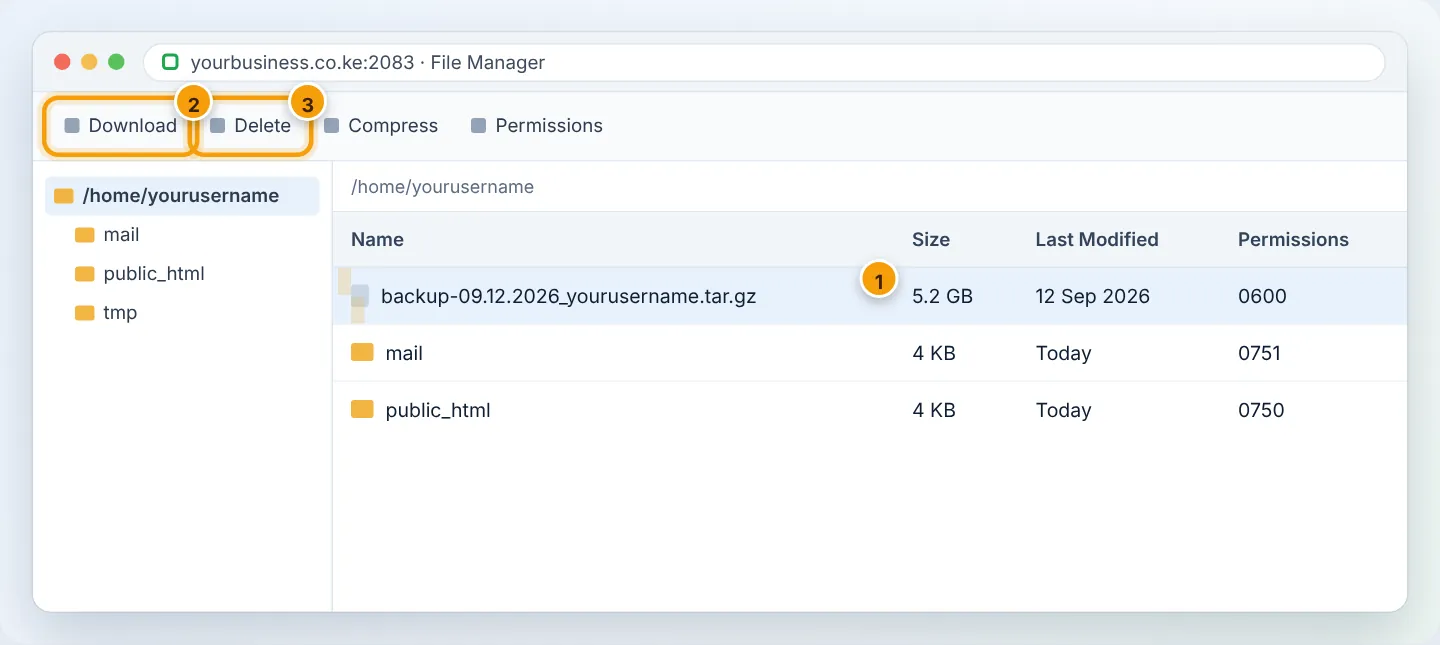
Do not delete these: the mail folder itself, etc, .cpanel, public_html/wp-config.php, wp-admin, wp-includes, or any database. If unsure what a file is, WhatsApp us before deleting.
Deleted items in File Manager may go to Trash. Open View Trash → Empty Trash to actually free the space.
Step 4: Check the result
Refresh Disk Usage (it can take a few minutes to recalculate). Aim to stay below 80% so there is room for updates and new emails.
Keep it under control
- Set mailbox quotas so one person cannot fill the whole account.
- Configure WordPress backup plugins to store backups in Google Drive/Dropbox only, keeping no more than 2–3 copies on the server.
- Upload images at sensible sizes (under 300 KB for photos).
- Review Disk Usage monthly.
If your business genuinely needs more space, move up a plan in minutes — see Upgrade or downgrade your plan.
Frequently asked questions
Do your daily backups count against my storage? No. Our daily backups are stored separately. Only backups you create inside your account count.
Why is Disk Usage different from File Manager's folder size? Disk Usage includes email, databases and hidden files, and updates periodically. Allow a few minutes after deleting.
Can I get more space without changing plans? Storage comes with the plan. Upgrading is instant and your files stay in place.
Figures are simplified illustrations. Your screen may look slightly different depending on your theme and the version of cPanel or the app you use.
Still need help?
Our Kenyan support team is on WhatsApp — real people, not bots. Mon–Sat, 8am–10pm EAT. Tickets are open 24/7.