
How to Update Your Account Details, Password and Contacts
Your client account controls your hosting, domains and payments. Keeping the email, phone and security settings up to date means invoices reach you, reminders arrive, and nobody else can get in.
Step 1: Edit your profile
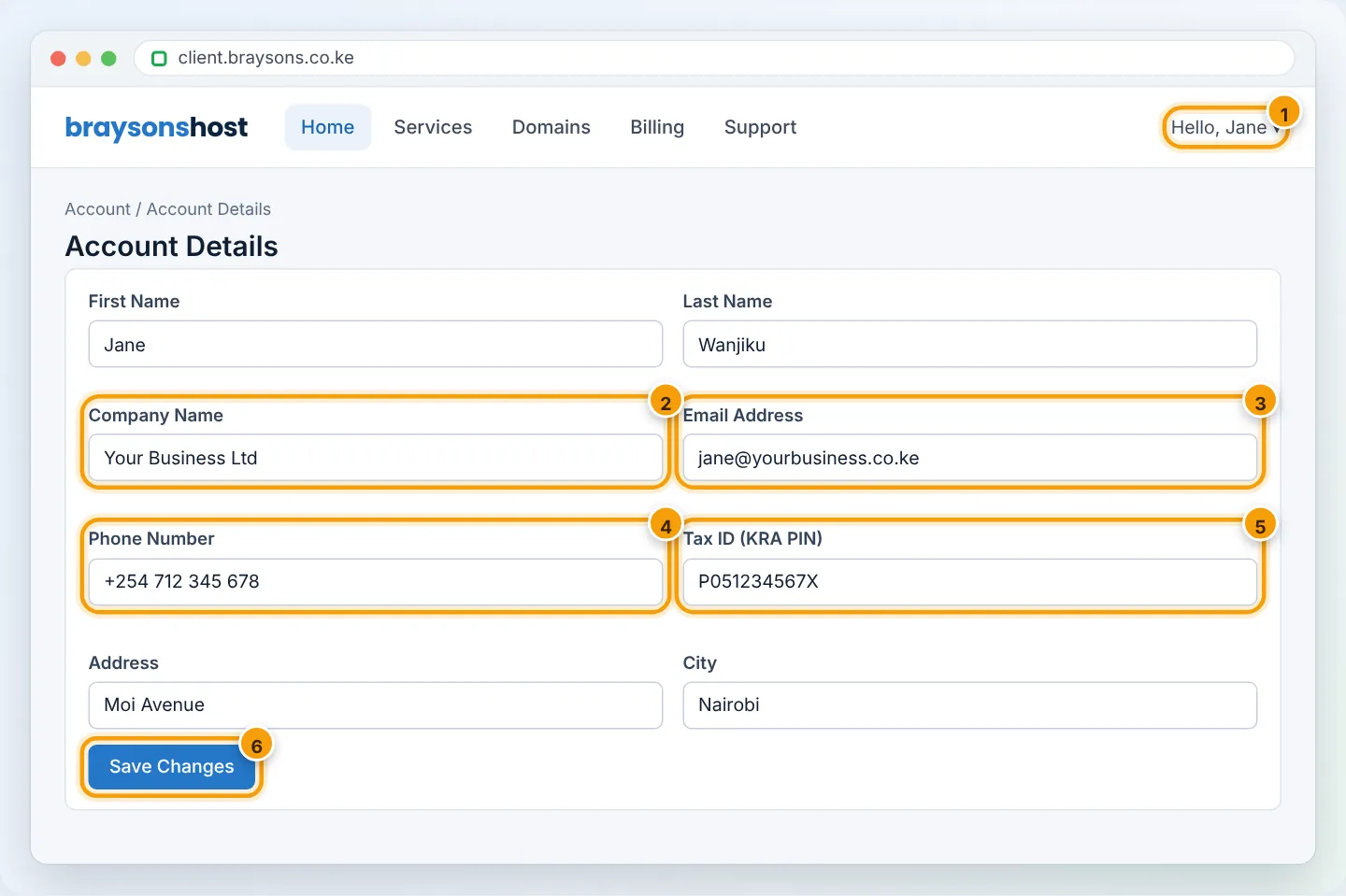
client.braysons.co.ke → click Hello, (your name) at the top right → Edit Account Details. Update:
- First/Last name and Company Name (appears on invoices),
- Email Address — all invoices, renewal notices and password resets go here,
- Phone Number — used for WhatsApp reminders and verification,
- Address and Tax ID (your KRA PIN, for invoices),
- Email preferences — keep Invoice, Product and Domain emails ticked.
Click Save Changes.
Use a business address you'll always have access to — ideally not a mailbox on the same domain you're hosting with us. If the website ever goes down, you still need to receive our emails.
Step 2: Change your password
Hello, (name) → Change Password. Enter the current password and a new strong one (at least 12 characters, from a password manager) → Save Changes.
Forgot it? On the login page click Forgot Password?, enter your account email, and follow the reset link we email you.
Step 3: Turn on two-factor authentication
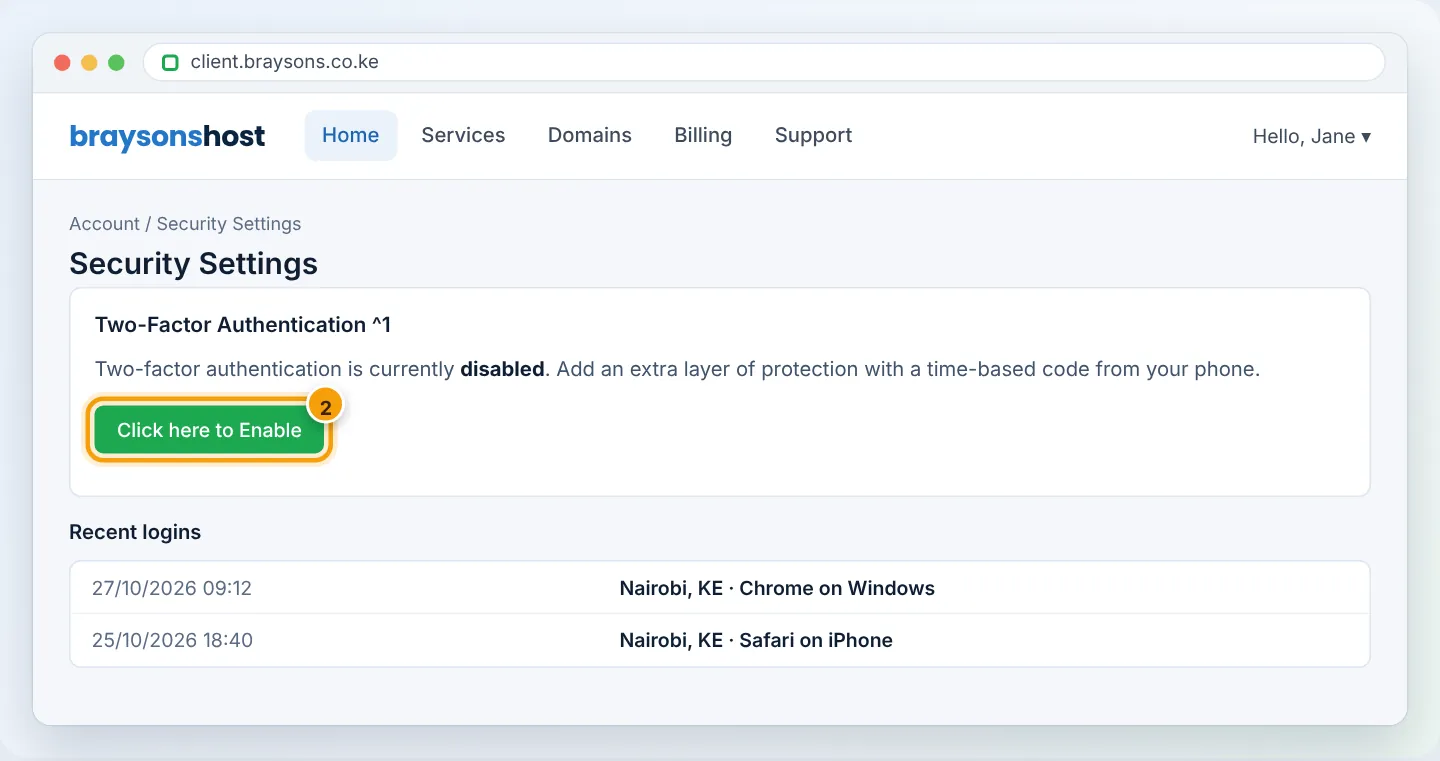
Hello, (name) → Security Settings → Two-Factor Authentication → Click here to Enable. Scan the QR code with Google Authenticator, Microsoft Authenticator or Authy, enter the 6-digit code, and save the backup code somewhere safe (it's the only way in if you lose your phone).
Step 4: Add contacts and staff users
Don't share your login. Instead, give each person their own access:
- Account → Contacts → Add New Contact — e.g. your accountant, with Invoice emails ticked, so they receive invoices without logging in.
- Account → User Management → Invite New User (if available) — gives a colleague or web developer their own login with only the permissions they need (e.g. Technical but not Billing).
Remove contacts and users when people leave.
Changing the account owner
Transferring the whole account to another person or company (for example, after selling a business) needs verification. Open a Billing ticket from the current account, with the new owner's details.
Troubleshooting
| Problem | Cause | Fix |
|---|---|---|
| “Email address already in use” | Another client account uses it | Use a different email, or ask us to merge accounts |
| Not receiving invoices | Wrong email, spam folder, or emails unticked | Check profile email & preferences; check spam; see Notification Centre |
| Lost 2FA phone | — | Use your backup code; or open a ticket from your email for identity verification |
| Reset email not arriving | Typo in email, or spam | Check spam; WhatsApp us to verify and update |
Figures are simplified illustrations. Your screen may look slightly different depending on your theme and the version of cPanel or the app you use.
Still need help?
Our Kenyan support team is on WhatsApp — real people, not bots. Mon–Sat, 8am–10pm EAT. Tickets are open 24/7.