
How to Reset a Lost WordPress Admin Password
Locked out of your WordPress dashboard? There are four ways back in, from the simple “Lost your password?” link to resetting it directly in the database. One of them will work, even if password-reset emails are not arriving.
Method 1: “Lost your password?” link
- Go to
https://yourbusiness.co.ke/wp-login.php. - Click Lost your password?
- Enter your username or email → Get New Password.
- Open the email from WordPress and click the reset link → set a new strong password → Save Password.
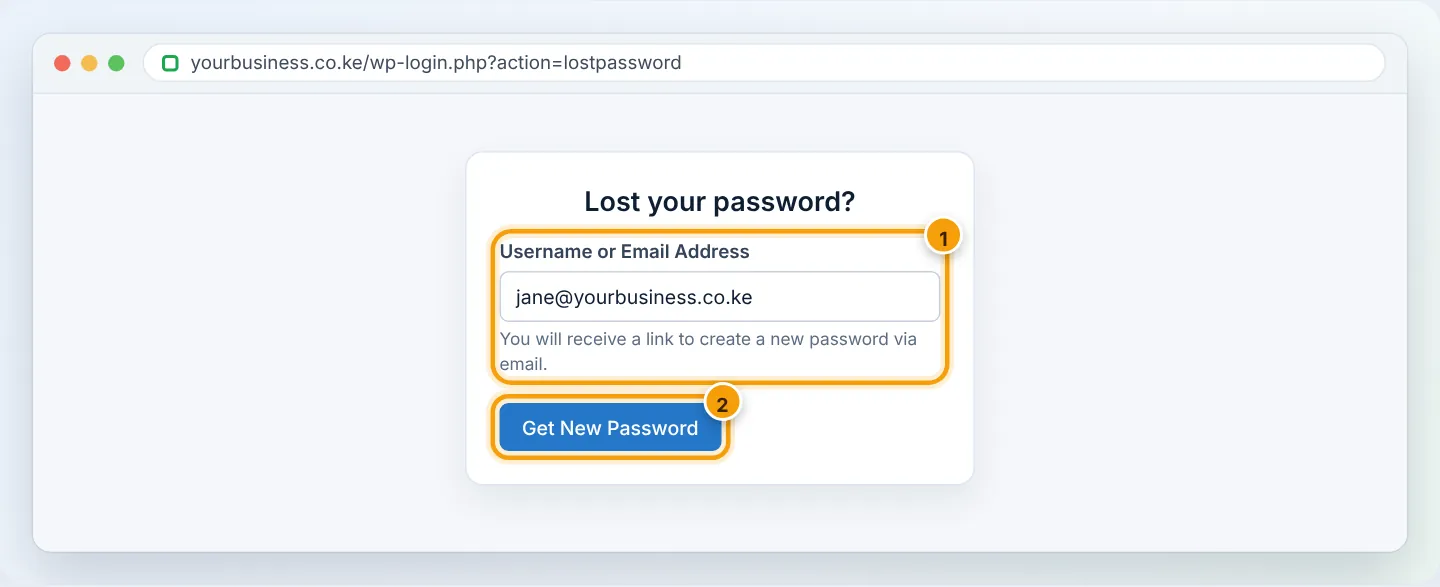
No email after 10 minutes? Check spam, then use Method 2. (Missing reset emails usually mean WordPress mail is not set up — fix it later with WP Mail SMTP.)
Method 2: WordPress Management in cPanel (fastest)
- cPanel → Domains → WordPress Management.
- Find your site's card → click Log in (opens the dashboard as an admin, no password needed) — or open Setup → Password to set a new admin password.
- Once inside, go to Users → Profile and set a new password.
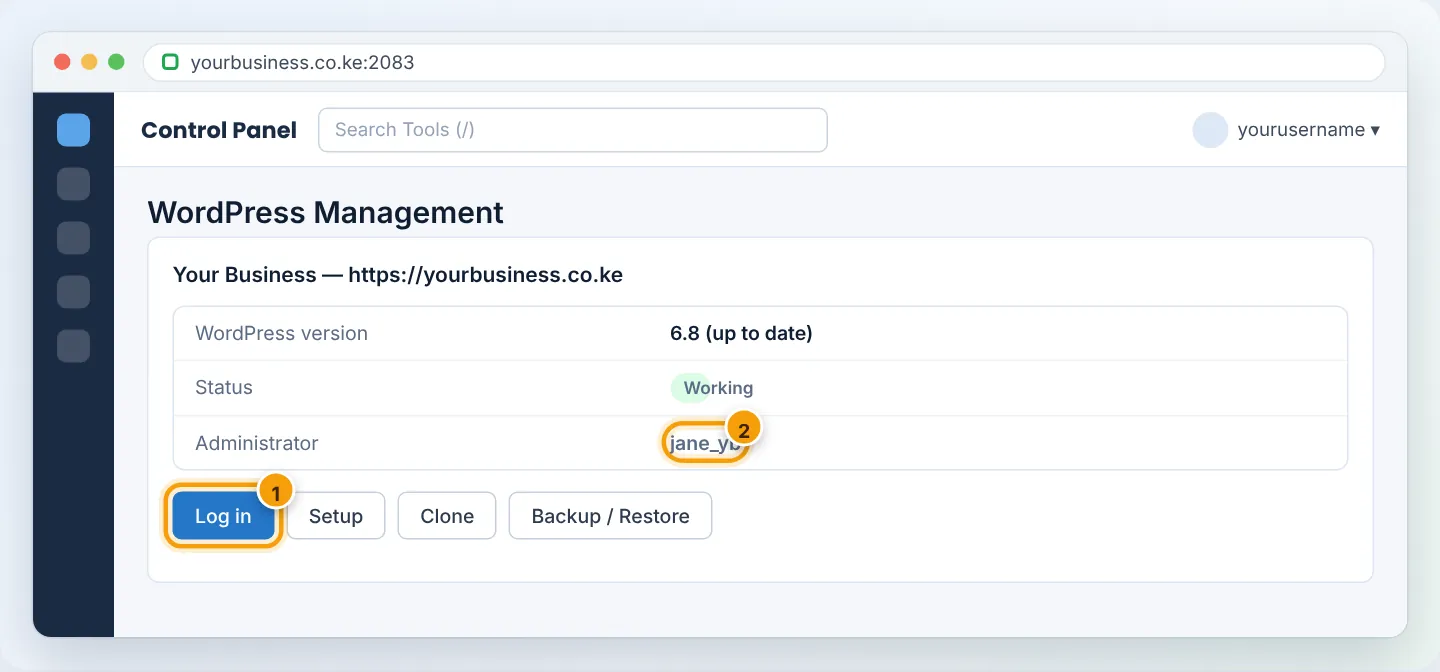
If your site was installed manually, click Scan in WordPress Management first so it detects the installation.
Method 3: Softaculous
cPanel → Softaculous Apps Installer → All Installations (box icon at the top) → click the pencil (Edit) next to your site → Admin Account → choose the admin username → type a new password → Save Installation Details.
Method 4: phpMyAdmin (when all else fails)
- Find your database name in
wp-config.php(DB_NAME) using File Manager. - cPanel → Databases → phpMyAdmin → click that database → table
wp_users(the prefix may differ, e.g.wpab_users). - Click Edit on your user's row.
- In
user_pass: choose MD5 in the Function column, type the new password in Value → Go. - Log in with the new password. WordPress automatically upgrades the stored password to a stronger hash.
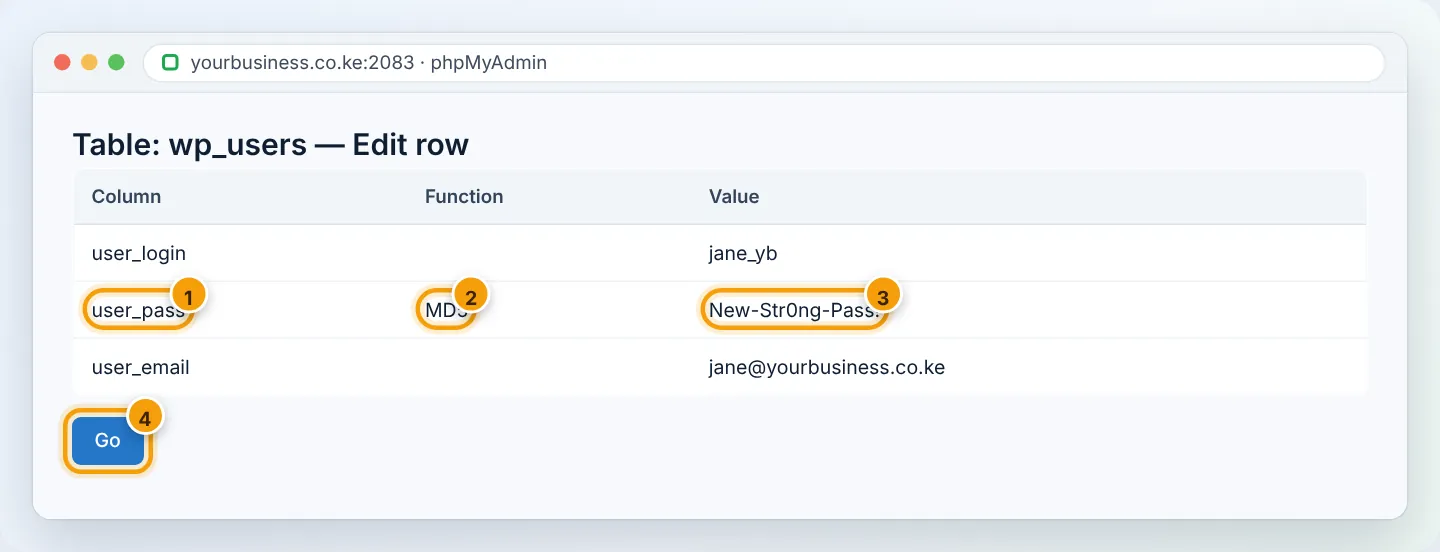
Edit only the user_pass field, and only for your own account. Back up the database first (phpMyAdmin → Export) if you are not comfortable here.
After you are back in
- Set a strong, unique password and save it in a password manager.
- Check Users for unknown administrators — if you find any, your site may be compromised: see My website has been hacked.
- Turn on 2FA — see Security checklist.
- Fix password-reset emails with WP Mail SMTP and SPF/DKIM — see SPF, DKIM and DMARC.
Troubleshooting
| Problem | Cause | Fix |
|---|---|---|
| “Error: The username is not registered” | Different username or email | Check wp_users in phpMyAdmin or WordPress Management |
| Login page reloads without error | Cookies/caching or wrong site URL | Clear cookies; check siteurl/home in wp_options |
| “Too many failed login attempts” | Security plugin lockout | Wait out the lockout, or rename the security plugin's folder temporarily |
| Login page not found (404) | Custom login URL plugin (e.g. WPS Hide Login) | Use your custom login address, or rename that plugin's folder |
Figures are simplified illustrations. Your screen may look slightly different depending on your theme and the version of cPanel or the app you use.
Still need help?
Our Kenyan support team is on WhatsApp — real people, not bots. Mon–Sat, 8am–10pm EAT. Tickets are open 24/7.