
How to Fix Mixed Content Warnings (Padlock Missing on HTTPS)
Your SSL certificate is working, but the padlock shows a warning or “Not secure” on some pages. That is mixed content — the page loads over HTTPS but pulls in some images, scripts or fonts over plain http://. Browsers block or flag those. Here is how to find and fix every one.
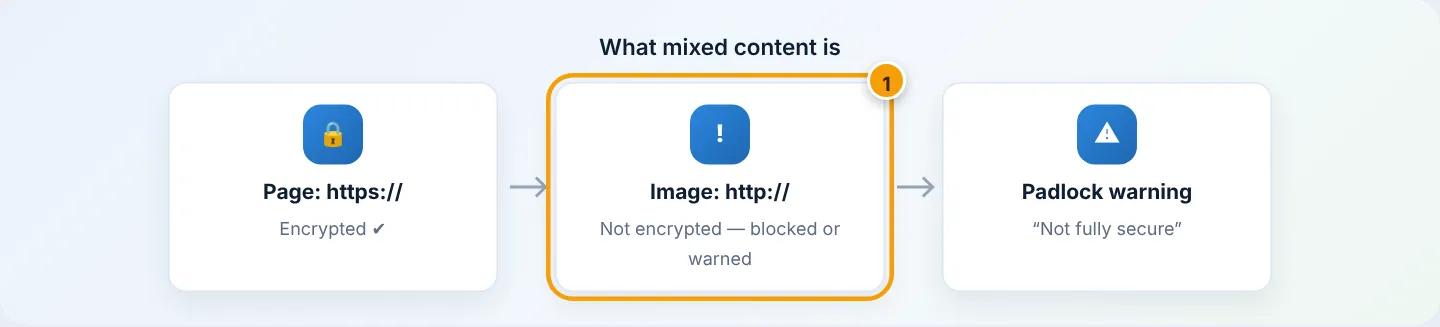
Step 1: Find the insecure items
- Open the affected page in Chrome or Edge.
- Press F12 (or right-click → Inspect) and open the Console tab.
- Reload the page. Mixed content warnings list each insecure URL.
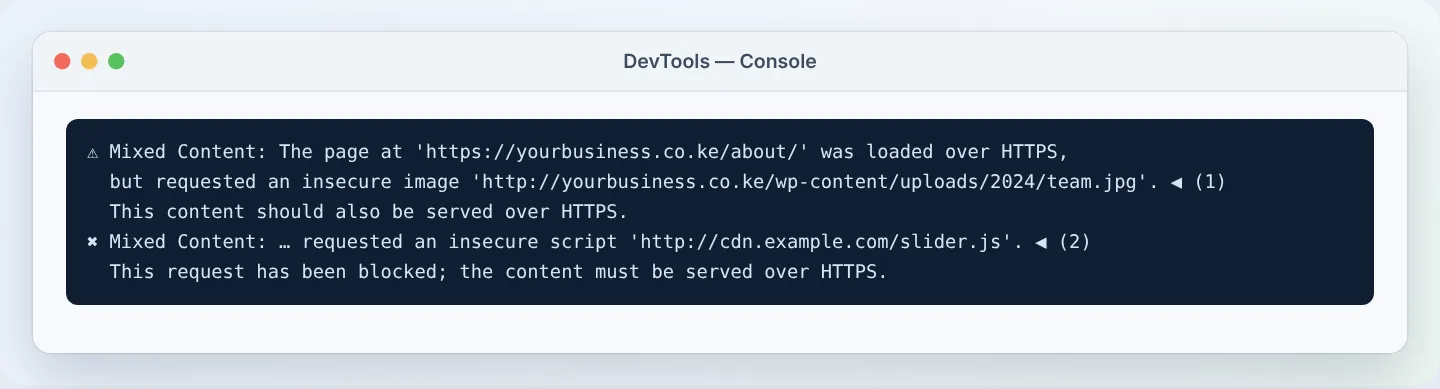
Note whether the insecure URLs are your own domain (http://yourbusiness.co.ke/…) — easy to fix in bulk — or another website (http://cdn.example.com/…).
Prefer an overview? whynopadlock.com and jitbit.com/sslcheck scan a page or whole site for you.
Step 2: Make sure the site itself uses HTTPS
- WordPress → Settings → General: both addresses start with
https://. - cPanel → Domains → Domains: Force HTTPS Redirect is On — see Install your free SSL.
Step 3 (WordPress): Update old links stored in the database
Older posts, pages and widgets still contain http://yourbusiness.co.ke/… links saved before SSL. Replace them in bulk:
- Take a backup of the database first (phpMyAdmin → Export, or your backup plugin).
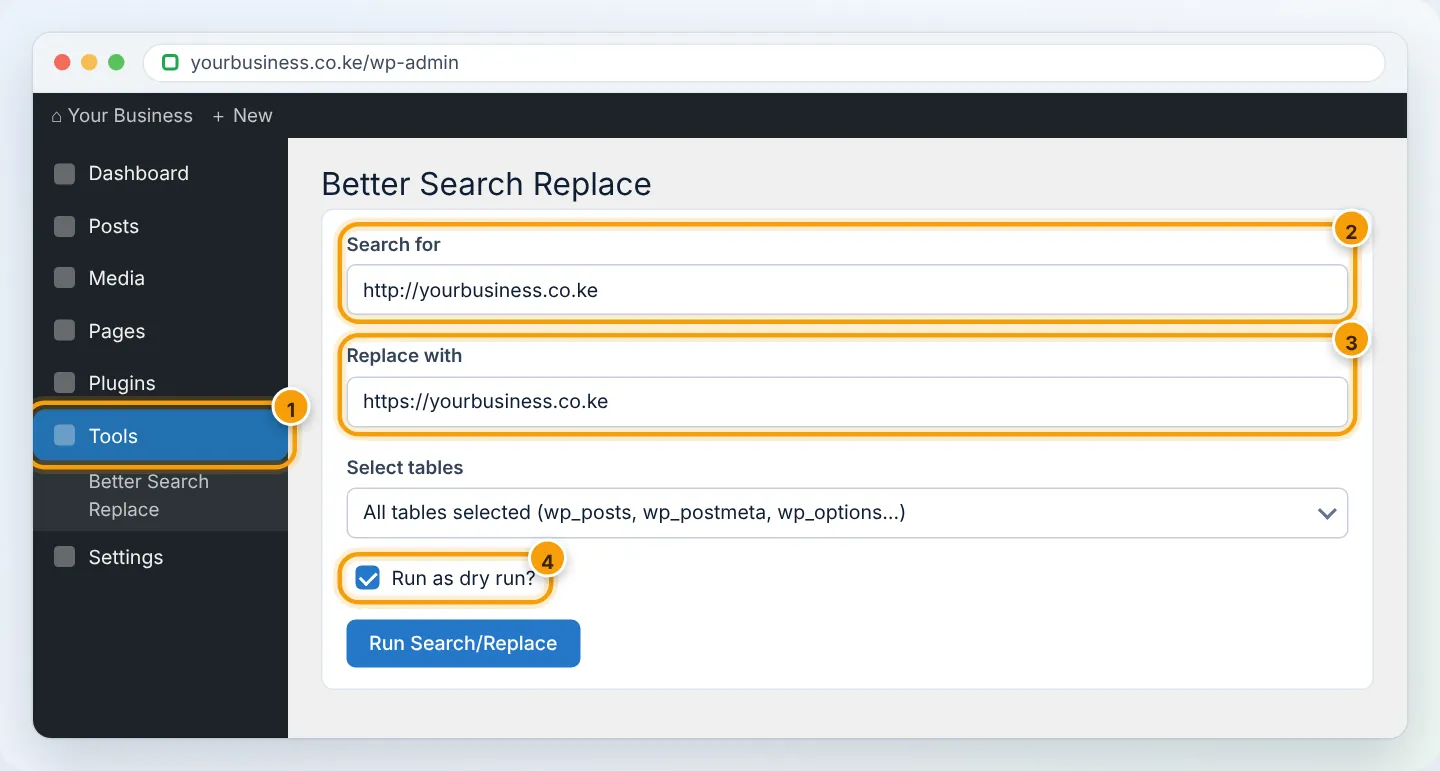
- Install the free Better Search Replace plugin → Tools → Better Search Replace.
- Search for:
http://yourbusiness.co.ke— Replace with:https://yourbusiness.co.ke. - Select all tables, tick Run as dry run? first to see how many changes, then untick it and run for real.
- Repeat for
http://www.yourbusiness.co.keif your old links used www.
Never use a plain text editor or a SQL REPLACE on WordPress data that contains serialized settings — it can corrupt widgets and page-builder layouts. Better Search Replace and WP-CLI handle this safely.
Page builders (Elementor, Divi, WPBakery) keep their own copies:
- Elementor → Tools → Replace URL → old
http://→ newhttps://→ Replace URL, then Regenerate CSS & Data. - Clear the builder's and the cache plugin's caches afterwards.
Step 4: Fix hard-coded links in theme files and custom code
If the Console shows URLs coming from your theme's CSS or templates (e.g. a background image in style.css):
- Edit the file in File Manager and change
http://tohttps://— or to a relative path (/wp-content/uploads/…). - For non-WordPress sites, search your HTML/CSS/JS files for
http://and update them.
Step 5: Fix external resources
For files loaded from other websites:
- Change
http://tohttps://— most services support it. - If a service does not support HTTPS, replace it (or download the file and host it on your own site).
- Old embedded videos or maps: re-copy the embed code from YouTube/Google Maps — current codes use HTTPS.
Step 6: Clear caches and recheck
Purge your caching plugin (LiteSpeed Cache → Purge All) and Cloudflare if used. Reload with the Console open — no more Mixed Content lines means you are done. Check several page types (home, a post, a product, contact).
Quick fix as a safety net
As an extra layer (not a replacement for the steps above), you can ask browsers to upgrade any remaining http requests automatically. Add to the top of public_html/.htaccess:
Header always set Content-Security-Policy "upgrade-insecure-requests"
Troubleshooting
| Console shows | Cause | Fix |
|---|---|---|
http://yourbusiness.co.ke/wp-content/uploads/… |
Old links in posts | Better Search Replace |
| Same URLs after replacing | Page builder or cache | Builder's Replace URL tool; purge caches |
http:// in a .css file |
Theme/child theme stylesheet | Edit the file to https or relative path |
| Third-party script blocked | External service URL | Update to https or replace the service |
| Warnings only when logged in | Admin toolbar plugin or customizer | Usually harmless — check logged out |
Need help? WhatsApp +254 733 338 989 with the page URL.
Figures are simplified illustrations. Your screen may look slightly different depending on your theme and the version of cPanel or the app you use.
Still need help?
Our Kenyan support team is on WhatsApp — real people, not bots. Mon–Sat, 8am–10pm EAT. Tickets are open 24/7.