
How to Use Google Workspace or Microsoft 365 Email With Braysons Hosting
Some businesses prefer Gmail-style or Outlook/Teams mailboxes from Google or Microsoft while keeping their website and domain with us. That works perfectly — you just point your domain's email records to them. Here is the exact order to avoid losing any mail.
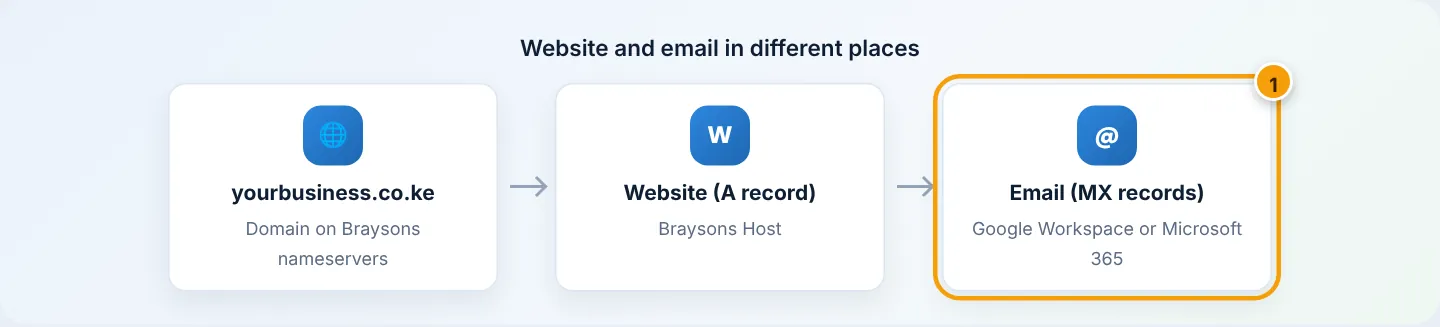
Before you start
- Sign up for Google Workspace or Microsoft 365 and start adding your domain in their admin console. They will show you records to add.
- Create the same mailboxes there (info@, jane@…) before switching MX, so mail has somewhere to go.
- Existing mail on Braysons: after the switch, old messages stay in your Braysons mailboxes. Use Google's or Microsoft's migration tool (IMAP migration, server
mail.yourbusiness.co.ke, port 993) to copy them across.
Step 1: Verify your domain (TXT record)
Google or Microsoft gives you a TXT verification value.
- cPanel → Domains → Zone Editor → Manage next to your domain → + Add Record.
- Type: TXT — Name:
@(your domain) — Record: paste the value, e.g.google-site-verification=…orMS=ms12345678. - Save Record, then click Verify in their console (allow 5–60 minutes).
Step 2: Replace the MX records
In Zone Editor, delete the existing MX record(s) pointing to your domain, then add the provider's:
Google Workspace (current single-record setup):
| Type | Name | Priority | Destination |
|---|---|---|---|
| MX | @ |
1 | smtp.google.com |
(Older Google accounts may list five MX records starting with aspmx.l.google.com — use exactly what your admin console shows.)
Microsoft 365:
| Type | Name | Priority | Destination |
|---|---|---|---|
| MX | @ |
0 | yourbusiness-co-ke.mail.protection.outlook.com (your exact value from the admin centre) |
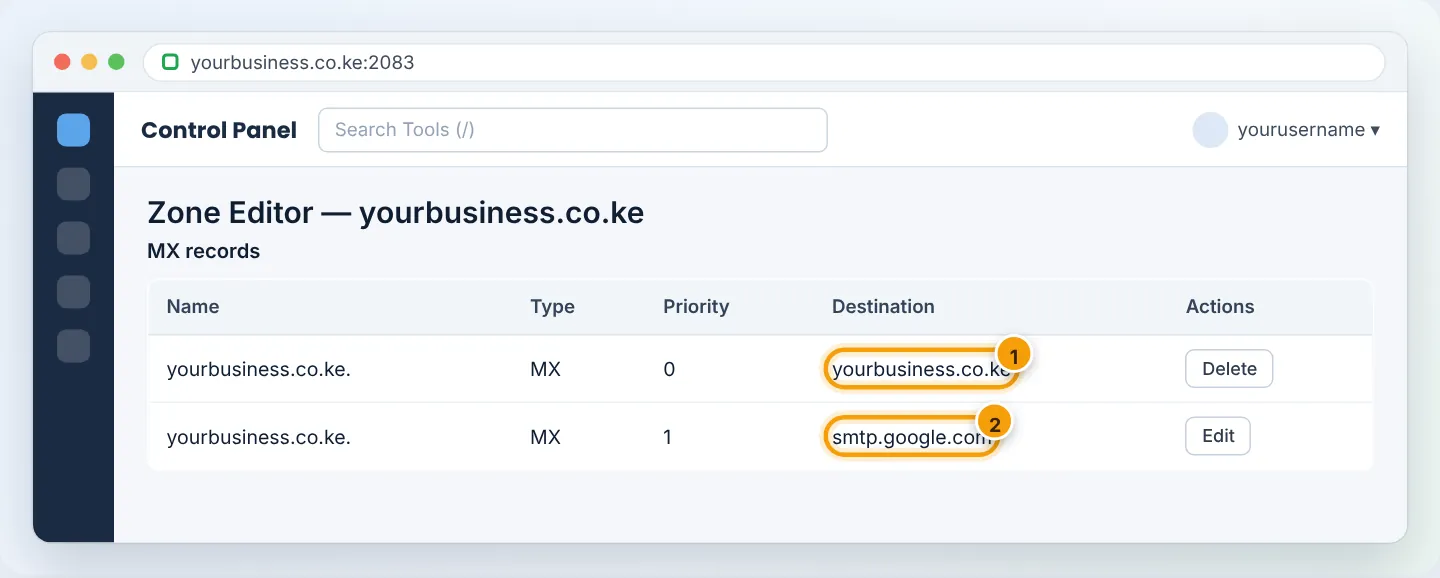
Step 3: Set Email Routing to Remote — important
cPanel must know your email is now handled elsewhere, otherwise emails sent from your website or from other Braysons accounts to your domain will still be delivered locally and never reach Google/Microsoft.
- cPanel → Email → Email Routing.
- Choose your domain → select Remote Mail Exchanger → Change.
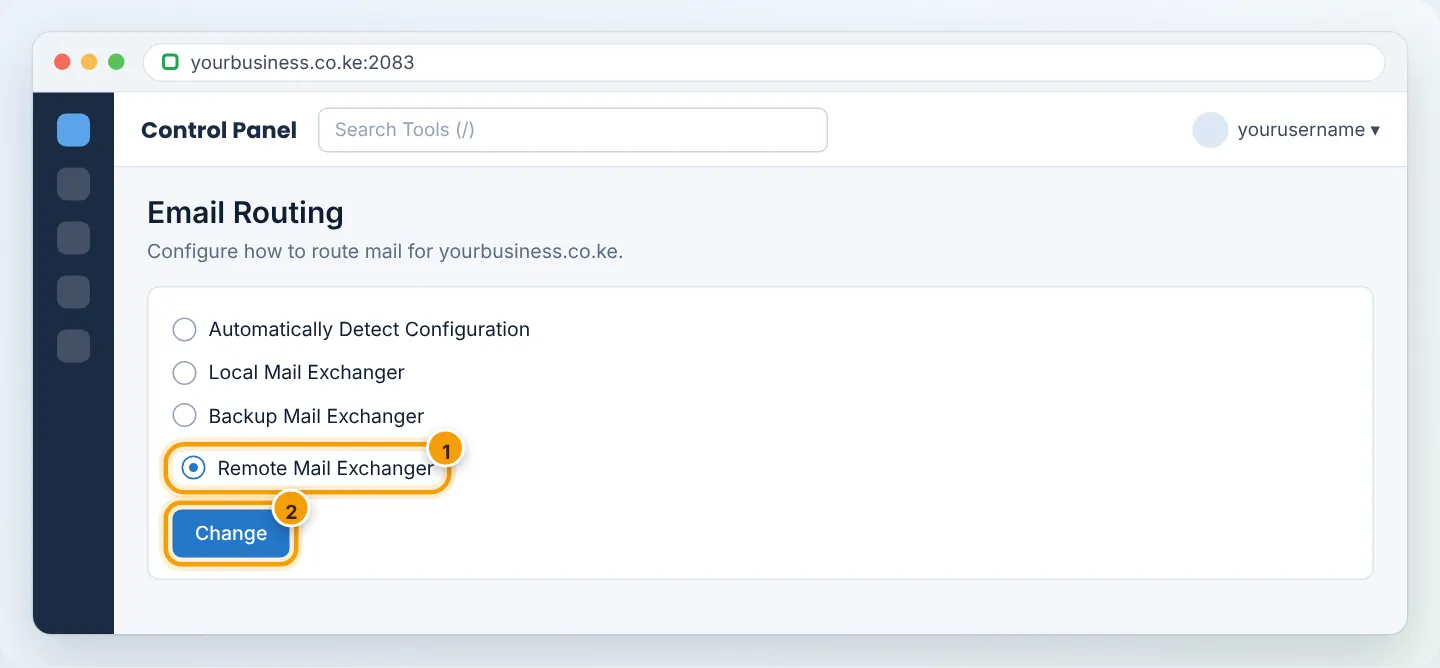
Step 4: Update SPF
Edit your SPF TXT record (only one per domain) to include the provider:
- Google Workspace:
v=spf1 +a +mx include:_spf.google.com ~all - Microsoft 365:
v=spf1 +a +mx include:spf.protection.outlook.com ~all
Keep +a if your website sends email (contact forms, WooCommerce) from your Braysons server. See SPF, DKIM and DMARC.
Step 5: Turn on DKIM at the provider
- Google: Admin console → Apps → Google Workspace → Gmail → Authenticate email → Generate new record → add the TXT record (
google._domainkey) in Zone Editor → Start authentication. - Microsoft 365: Defender portal → Email authentication settings → DKIM → add the two CNAME records (
selector1._domainkey,selector2._domainkey) → enable.
Step 6: Microsoft 365 extras (optional)
Microsoft also suggests an autodiscover CNAME (autodiscover.outlook.com) and SRV records for Teams. Add them in Zone Editor exactly as shown in the Microsoft admin centre.
Step 7: Test
- Send from an outside Gmail/Yahoo to your address — it should arrive in Google/Microsoft.
- Submit your website contact form — it should arrive too (thanks to Email Routing → Remote).
- Check mxtoolbox.com → MX Lookup shows only the provider's records.
Troubleshooting
| Problem | Cause | Fix |
|---|---|---|
| Website form emails never arrive | Email Routing still Local | Set Remote Mail Exchanger |
| Some mail still lands in old Braysons mailbox | Old MX not deleted / DNS caching | Delete old MX; wait up to 24 hours |
| Domain verification fails | TXT added under wrong name or with quotes | Name @, no extra quotes; wait and retry |
| Emails to Gmail flagged as spam | SPF missing provider include, or DKIM off | Update SPF; enable DKIM |
| Two SPF records | Added a new one instead of editing | Merge into one |
Frequently asked questions
Do I still pay for Braysons hosting? Yes, for your website. Your mailboxes are billed by Google or Microsoft.
Can I switch back to Braysons email later? Yes — restore the MX record to your domain, set Email Routing to Local, and recreate mailboxes in cPanel.
Figures are simplified illustrations. Your screen may look slightly different depending on your theme and the version of cPanel or the app you use.
Still need help?
Our Kenyan support team is on WhatsApp — real people, not bots. Mon–Sat, 8am–10pm EAT. Tickets are open 24/7.